
Developer Tools
Use these developer tools to inspect, minify, compare, and transform code or text directly in your browser.
-
 JSON Parser & Formatter (Tree View)
Paste JSON to validate, format, and view it in a tree.
-
 CSS Minifier Online - Free, Paste & Minify Instantly
Minify CSS online for faster page loads.
-
 CSS Unminifier Online - Beautify Minified CSS Free
CSS unminifier online - beautify minified CSS with proper indentation, line breaks, and readable formatting.
-
 JavaScript Minifier Online - Free, Paste & Minify JS
JavaScript minifier online free - paste your JS, click Minify, and copy the compressed code.
-
 JavaScript Unminifier - Beautify Minified JS Online
JavaScript unminifier online - reformat minified JS with indentation and line breaks for stack-trace debugging.
-
 Compare Code or HTML - Online Text Diff
Compare code, text, or HTML online, side by side.
-
 MD5 Hash Generator + MD5-to-Text Cache Lookup
Text to MD5 + MD5 to text cached lookup.
-
 CSS Gradient Generator - Build & Copy Gradient Code
CSS gradient generator - build animated linear gradients with live preview; copy ready-to-paste CSS with vendor-prefix fallbacks for every browser.
-
 Text to HTML Editor Online - Live WYSIWYG Preview
Text to HTML editor online - write in a WYSIWYG view and watch the generated HTML update live, with JavaScript support.
-
 Online Regex Tester - Match, Highlight and Debug Patterns
Regex Tester Online - Test a regular expression against your own sample text and watch every match highlight as you type.
-
 Color Picker - Free Online, No Sign-Up
Pick a color and read its HEX, RGB, and HSL values, with complementary, analogous, and shade palettes and one-click copy.
-
 Data Visualizer - Free Online, No Sign-Up
Paste CSV, JSON, or Label, Value rows and draw them as bar, line, pie, and more chart types - all in your browser.
-
 Online Code Editor - In Your Browser, No Upload
A free in-browser code editor powered by the Monaco engine behind VS Code.
-
 Code Beautifier - Format JavaScript, CSS & HTML Online
Beautify JavaScript, CSS, HTML, and JSON in your browser.
-
 Word Counter - Count Words, Characters & Reading Time
Count words, characters, sentences, lines, and estimated reading time live as you type or paste text - free, in your browser, no upload.
-
 Sort Text Lines Online - Alphabetize a List A-Z or Z-A
Free online tool to sort text lines alphabetically, A-Z or Z-A, right in your browser.
-
 Remove Duplicate Lines Online - Keep the First, Drop the Repeats
Free online tool to remove duplicate lines from a pasted list, right in your browser.
-
 Reverse Text Online - Flip a String Character by Character
Free online tool to reverse a block of text character by character, right in your browser.
-
 Text Repeater - Repeat Text Online, No Signup
Type or paste text, set how many times (1-10,000), and get each repeat on its own line.
-
 Base64 Encoder and Decoder - Text to Base64 in Your Browser
Encode text to Base64 or decode a Base64 string back to text, right in your browser - no upload and no account.
-
 URL Decoder Online - Free Tool
URL Decoder - Free Online Tool.
-
 Character Counter - Free Online
Character Counter - Count words, characters, sentences, lines, and reading time live as you type.
-
 Find and Replace Text - Free Online
Find and Replace Text - Find every occurrence of a word or phrase in a block of text and replace it with something else.
-
 File Encryption Tool - Free Online
File Encryption Tool - Encrypt or decrypt a file with a password, right in this browser - no upload, no app to install.
-
 JWT Decoder - Header & Payload Viewer
JWT Decoder - Paste a token to view its header and payload as JSON, decoded in your browser.
-
 UUID Generator (v4) - Free Online
UUID Generator - Generate one or more random UUIDs (v4) with a click, set the batch size, then copy the result.
-
 Hash Generator (SHA-256/512) - Free Online
Hash Generator (SHA-256/512) - Hash the text you type or paste into a SHA-1, SHA-256, SHA-384, or SHA-512 digest, right in your browser.
-
 Text Case Converter - UPPERCASE, camelCase, snake_case & More
Convert text to UPPERCASE, lowercase, Title Case, Sentence case, camelCase, snake_case, or kebab-case instantly in your browser - no upload, no signup.
-
 JSON to TypeScript Interface Generator - Free Online
JSON to TypeScript Interface Generator - Convert a JSON input into a TYPESCRIPT output - one step, in the browser.
-
 Markdown to HTML Previewer - Free Online
Paste Markdown and preview sanitized HTML in your browser - then copy the HTML source.
-
 HTML to Markdown Converter - Free Online
Paste HTML and convert it to Markdown in your browser - no upload.
-
 Color Contrast Checker (WCAG) - Free Online
Color Contrast Checker (WCAG) - Check the contrast ratio between text and background colors against WCAG AA and AAA.
-
 SVG Optimizer & Minifier - Free Online
SVG Optimizer & Minifier - Paste SVG markup and get a smaller copy by stripping comments and wasted whitespace.
-
 SQL Formatter & Beautifier - Free Online
SQL Formatter & Beautifier - Format messy SQL in the browser with clause breaks and uppercase keywords.
-
 HTML Entity Encoder & Decoder - Escape in Your Browser
Escape & < > " ' into HTML entities, or decode entities back to text - auto-detected, right in your browser.
-
 Password Strength Checker - No Upload, In Your Browser
Check how strong a password is, right in your browser - no upload, no account.
-
 Lorem Ipsum Generator - In-Browser, No Upload
Lorem Ipsum Placeholder Text Generator - Generate classic Lorem Ipsum placeholder text for mockups and layouts, right in the browser.
-
 Number Base Converter (Binary/Hex/Octal/Decimal) - Free Online
Number Base Converter (Binary/Hex/Octal/Decimal) - Convert a number between binary, octal, decimal, and hexadecimal (or any custom base 2-36), right in the...
-
 CSV to JSON Converter - Free Online
Convert CSV to JSON (or JSON to CSV) instantly in your browser.
-
 YAML to JSON Converter - Free Online
Convert YAML to JSON (or JSON to YAML) instantly in your browser.
-
 CSS Box-Shadow Generator - Build & Copy Shadow Code
CSS box-shadow generator - drag offset, blur, spread, color, and opacity sliders and copy the ready-to-paste box-shadow line; use this when you need a drop or...
-
 CSS Grid Layout Generator - Free Online
CSS Grid Layout Generator - Build a display: grid CSS block online free, with a live preview and no upload.
-
 User Agent Parser - Browser, OS and Device Detector - Free Online
Paste a User-Agent string to see its browser, engine, OS, and device type, decoded in your browser - unlike JSON Parser, which reads JSON data.
-
 Cron Expression Parser - Schedule Explainer & Next Run Times
Decode a 5-field cron expression into a plain-English schedule and see its next 5 run times, in your browser - no upload, no install.
-
 URL Slug Generator - In-Browser Permalink Maker
Turn a title into a clean URL slug in your browser - no upload.
-
 Whitespace Remover - Clean Extra Spaces in Your Browser
Clean extra spaces, tabs, and blank lines from pasted text in your browser - collapse, trim, or strip spaces with no upload.
-
 HTML Tag Remover
Strip HTML tags, scripts, and styles to plain text in your browser - paste markup, copy the result, no upload.
-
 Binary Text Converter - UTF-8 Encode Decode
Convert text to UTF-8 binary and back in your browser - paste, encode or decode, copy, no upload.
-
 ROT13 Encoder - Shift Letters by 13 Online
Apply ROT13 to text in your browser - paste, live shift A-Z by 13, copy the result.
-
 XML Formatter Online - Free Online
XML Formatter Online - Pretty-print XML with consistent indentation.
-
 JSON Diff Checker Online - Free Online
JSON Diff Checker Online - Paste two JSON texts side-by-side and click Compare to see exactly what changed between them - added keys appear green, removed ...
-
 Keyword Extractor - Pull Key Phrases from Text in Your Browser (No Upload)
Paste text and get its key phrases ranked in your browser - instant frequency mode, plus an optional on-device AI mode (~24 MB, one time).
-
 Text Similarity Checker - Compare Texts by Meaning (No Upload)
Compare two texts and get a meaning-based similarity score in your browser - no upload.
-
 Text Anonymizer - Remove Names, Emails & Numbers (No Upload)
Remove emails, phone numbers, card numbers, names and places from any text in your browser - nothing is uploaded.
-
 AI Code Explainer - Understand Code Without Uploading It
Paste a code snippet and get a plain explanation - developer overview, step-by-step walkthrough, or plain English.
-
 Unix Timestamp Converter - Epoch to Date in Your Browser
Convert a Unix timestamp to a readable date, or a date back to Unix seconds and milliseconds.
-
 HTML Minifier Online - Free Online
HTML Minifier Online - Strip whitespace and comments from a html block.
-
 XML to JSON Converter - Paste XML, Get JSON in Your Browser
Paste XML and get formatted JSON instantly.
-
 YAML Formatter Online - Free Online
YAML Formatter Online - Pretty-print a yaml block with consistent indentation.
-
 Markdown Table Generator (Paste CSV/TSV, GFM Output)
Paste CSV, TSV, or pipe-delimited rows and get a GitHub-Flavored-Markdown table with an alignment row and escaped pipes.
-
 Rich Text Editor Online - Free Online
Rich Text Editor Online - Edit a rich text directly in the browser without installing anything.
-
 CSS Border-Radius Generator - Round Corners & Copy Code
CSS border-radius generator - drag a slider per corner, switch between px and %, watch a live preview round its corners, and copy the ready-to-paste border-rad...
-
 Hex to RGB Converter - Instant HEX to RGB and HSL, In-Browser
Hex to RGB Converter - type a HEX code or pick a color and copy the RGB and HSL equivalents instantly.
-
 CMYK to RGB Converter Online - Free Online
Pick a colour and read its RGB, HEX, and HSL values in your browser, with one-click copy.
-
 Random Color Generator Online - Free Online
Random Color Generator Online - Pick a color and read its HEX, RGB, and HSL values side by side.
-
 Color Palette Generator Online - Free Online
Color Palette Generator Online - Pick a color and read its HEX, RGB, and HSL values side by side.
-
 PCFG Password Pattern Generator - In-Browser, No Upload
Generate example passwords that follow the common PCFG base structures (letters, digits, symbols) a guessing model exploits, and read the L/D/S notation beside...
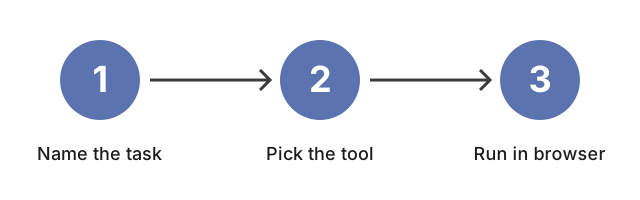
Which tool to use, by task
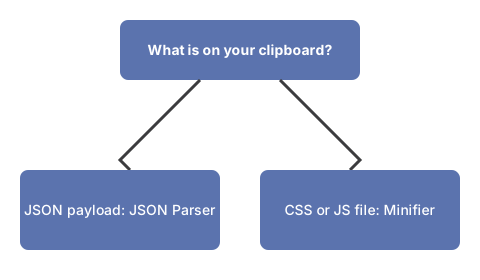
- JSON Parser to validate and explore complex payloads, and spot the field that breaks parsing before you deploy.
- CSS Minifier or JS Minifier to shrink assets for production.
- CSS UnMinifier or JS UnMinifier to make code readable again.
- Text Diff to diff two config files or build outputs and confirm only the intended lines changed.
- MD5 Converter to generate hashes from text strings for integrity checks (not password storage - see below).
- Regex Tester to match a pattern against sample text live, with per-group highlights and flag toggles (g, i, m, s, u, y).
- CSS Gradient Generator to build reusable gradient styles.
- Text To HTML Editor when you need simple markup quickly.
- Color Picker to grab a HEX, RGB, or HSL value for a design.
- Data Visualizer to turn rows of numbers into a quick chart.
- Code Editor to edit and preview a snippet without leaving the browser.
Tips for reliable results
Keep the original readable source on disk when minifying - you will need it for stack traces. For diff checks, compare the smallest possible snippets to isolate changes. The tools run in the browser; strip sensitive keys and tokens before pasting if the input is confidential.
Quick comparison
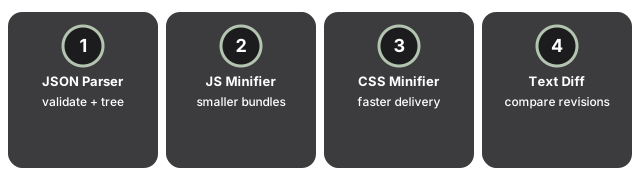
| Tool | Best for | Input | Output |
|---|---|---|---|
| JSON Parser | Validate + inspect | JSON text | Tree view + formatted JSON |
| JS Minifier | Smaller bundles | JavaScript | Minified JS |
| CSS Minifier | Faster CSS delivery | CSS | Minified CSS |
| Text Diff | Compare revisions | Two texts | Line-by-line differences |
| MD5 Converter | Checksums | Text string | MD5 hash |
Minify vs beautify vs obfuscate
Three transformations are often confused. They produce different output and serve different goals.
- Minify. Removes whitespace, line breaks, and comments, and shortens local variable names. The runtime behavior is unchanged, and a minified file is trivially reversible with a beautifier. Goal: smaller over-the-wire payload.
- Beautify (format). Adds whitespace and indentation back for readability. Functionally identical to the input. Goal: reading a minified or single-line file without changing it.
- Obfuscate. Renames identifiers, restructures control flow, and sometimes encodes strings so the result is difficult to read even after beautifying. It is not a security boundary - determined attackers can still reverse it. Goal: raise the cost of casual reverse engineering.
Which to pick. Shipping to production? Minify. Debugging a stack trace? Beautify the minified bundle. Distributing a widget you would rather users did not read? Obfuscate, but pair it with a proper license and server-side checks for anything that actually has to be secret.
Context for common tasks
MD5 is reliable for cache keys, ETags, and file-integrity checksums but not for password storage - a single GPU can hash hundreds of millions of candidates per second, making MD5 passwords trivially brute-forced. Use bcrypt or Argon2id when a human secret is involved.
For data serialization, CSV is the right call when every row has the same flat shape and the downstream tool expects tabular input. JSON handles nested structures and mixed types - and is the format most REST APIs send. The JSON parser lets you validate and reformat in one step before writing a single line of code against it.
Unix timestamps count seconds since 1970-01-01 00:00:00 UTC. The most common off-by-one trap is confusing seconds with milliseconds - the JavaScript Date.now() value is 1,000 times larger than the Unix timestamp for the same moment. The current millis guide shows both values side by side.
Last reviewed: 2026-08-03
Free Tool Online Editorial TeamWhy trust these tools
- Ten-plus years of web tooling. The freetoolonline editorial team has shipped browser-based utilities since 2015. The goal has never changed: get you to a working output fast, without an install.
- No install, no sign-up. Open a tool and get a working output in seconds - nothing to download and no account to create. Tools that need heavy processing run it on our service, so even a low-powered machine gets the job done.
- Analytics stops at the page view. We measure which pages get visited, not what you type or upload inside a tool. There is nothing to sign in to and no profile is attached to your input.
- Open-source core components. The processing engines underneath (libheif, libde265, pdf-lib, terser, clean-css, ffmpeg.wasm, and others) are public and audit-able. We link to each one in its tool page's footer.
- Free, with or without ads. All tools are fully functional without sign-up. The Disable Ads button in the header is always available if you need a distraction-free run.
Frequently Asked Questions
When should I minify JavaScript or CSS by hand?
For single-file widgets, email templates, or a one-off embed where you do not have a build step. Paste into JS Minifier or CSS Minifier, ship the minified output to production, and keep the readable source in source control. For real projects, bundle minification into your build (esbuild, Vite, webpack) instead.
Is pasting code into a browser tool safe?
These tools run in the browser, so nothing you paste leaves your device. Even so, strip secrets (API keys, tokens, internal URLs) before pasting, and use a local minifier for code you cannot share with anyone.
My JSON won't validate - what's most likely wrong?
Three common issues: trailing commas after the last key in an object or array, unquoted keys (JSON requires double-quoted keys), and single quotes around strings (JSON only accepts double quotes). Paste into JSON Parser and the error line usually points to the exact character.
What does MD5 Converter help with?
Quick checksums and ID generation for cache keys, file-dedup, or deterministic fingerprints. MD5 is not a password hash - use bcrypt, scrypt, or Argon2 on the server for anything auth-related.
How do I compare two config files without scrolling back and forth?
Use Text Diff. Paste the old version on the left and the new version on the right; the tool highlights line-by-line differences so you can confirm only the intended lines changed before deploying.