FFmpeg Online vs Video Converter - which tool should you open?
Use FFmpeg Online when you need a specific bitrate, codec flag, or frame extraction. Use Video Converter or a format-specific alias (MOV to MP4, MP4 to GIF) for simple format changes with default settings - fewer clicks, same server-side encoder.
freetoolonline.com Editorial Team| Use case | Clicks to result | Tool to open |
|---|---|---|
| Simple format change (MOV to MP4, MP4 to MP3) at default quality | 2-3 clicks | Video Converter or format alias |
| Custom bitrate, frame rate, or audio codec flag | 5-10 typed flags | FFmpeg Online |
| Extract 1 frame, run ffprobe, or downmix audio channels | Custom command | FFmpeg Online |
| Make a GIF from video frames | 1 click (fps dropdown) | GIF Maker |
Why FFmpeg Online and Video Converter both upload server-side
Browser-only video encoding is feasible for short clips, but the moment you need libx264 with a specific bitrate, AAC at 128 kbps, two-pass encoding, or anything beyond MediaRecorder's defaults, the browser is no longer enough. That is why both routes upload your file to the freetoolonline AWS service and run the encoder there. FFmpeg Online exposes the full FFmpeg command line; Video Converter and the format-specific aliases (MOV to MP4, MP4 to WebM, MP4 to MP3, and similar) wrap a curated subset of those commands behind dropdowns so you do not have to type any flags.
Neither route is "in your browser" in the sense that nothing leaves your device - both upload the input, the encoder runs on the service, and the result downloads back. The output file is stored on S3 and rotated after the standard service retention window. If you need a path that does not upload, FFmpeg Online and the format-specific routes are not it - that decision is covered in FFmpeg online vs local FFmpeg, when each wins.
Routing rule 1 - default settings, common formats: open the format-specific route
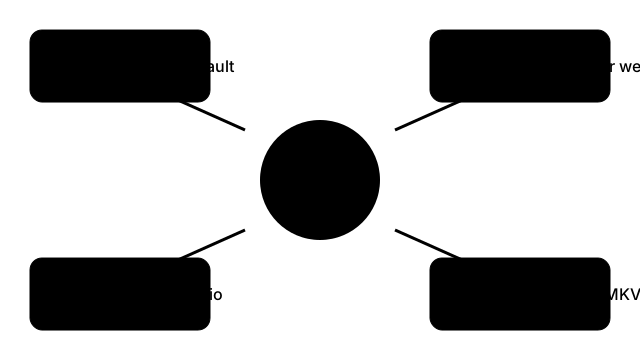
If your task is one of these and you want the encoder's defaults, open the format-specific tool and skip FFmpeg Online:
- MOV to MP4 (e.g. iPhone screen-recording or QuickTime export to a Windows-friendly file): https://freetoolonline.com/video-tools/video-converter.html resolves through the Video Converter route. Drop in the .mov, click convert, download the .mp4. Default codec is the right one for almost every reader of this guide; you do not need to type
-c:v libx264. - MP4 to WebM for the web: Video Converter with WebM as the output format. The default settings produce a file the major browsers (Chrome, Firefox, Edge, Safari 14.1+) all play back inline. The format-choice question itself is covered in MP4 vs WebM for the web.
- MOV to MP3 audio extraction: https://freetoolonline.com/video-tools/video-converter.html resolves through Video Converter. Default audio codec is MP3 at the encoder's standard bitrate; if you only have voice, that is enough.
- Container swap (MKV to MP4, AVI to MP4): the Video Converter hub converts quickly between compatible containers at default settings.
Reason: the format-specific routes pre-select the encoder, codec, and container so you do not type any flags. Each click maps to one curated FFmpeg command on the backend. If the defaults do not match what you need, jump to rule 2. A walkthrough of the Video Converter route itself - picking MP4, MOV, MP3, or WAV as output and trimming a segment before converting - lives in Video Converter Online Free: Convert to MP4, MOV, MP3 and More.
Routing rule 2 - non-default flags or rare codecs: open FFmpeg Online
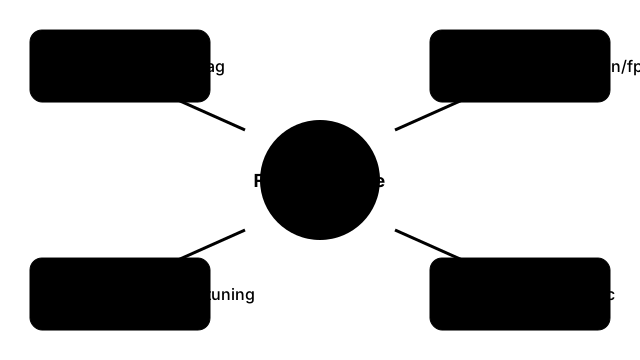
Open FFmpeg Online when you need any of the following, because the format-specific route does not expose them as dropdowns:
- Specific bitrate (e.g. 1500 kbps for 1080p, 800 kbps for 720p, 192 kbps for podcast audio). The flag is
-b:v 1500kor-b:a 192k. - Specific resolution or frame rate (e.g. resize to 1280x720, change to 30 fps from a variable-rate source). Flags are
-vf scale=1280:720and-r 30. - Two-pass encoding for tighter file-size targets, or constant rate factor tuning (
-crf 23). - Trim a clip by start time and duration without re-encoding (
-ss 00:01:30 -t 00:00:15 -c copy). - Extract one frame as a JPG or PNG (
-ss 00:00:05 -frames:v 1 output.jpg) - the format-specific route does not have a one-frame-extract setting; FFmpeg Online's command line does. - Run
ffprobeto read the stream metadata of an unknown file. Format-specific routes do not expose ffprobe; FFmpeg Online does. - Audio downmix from 5.1 to stereo (
-ac 2) or sample-rate change (-ar 44100). - Rare codec or container: anything outside the format-specific dropdown menu - WMV input, OGG output, ProRes output, DNxHR, etc.
Reason: FFmpeg Online forwards your typed command line to the same encoder the format-specific routes use, but does not pre-select any flags - whatever you type is what runs. That is the only way to get non-default encoding without local-installing FFmpeg yourself.
Routing rule 3 - output is a GIF: open GIF Maker
The "convert this video to a GIF" task is a special case because GIF has its own per-frame-rate, palette, and looping decisions that neither FFmpeg Online nor Video Converter exposes as a default dropdown. GIF Maker at https://freetoolonline.com/image-tools/gif-maker.html handles the GIF-specific path - drop in a video clip, set the frame rate (commonly 10 or 15 fps for social-share GIFs), trim, and download.
The inverse direction - taking an existing GIF and extracting its frames as PNG or JPG - lives at Extract GIF Frames, with format-choice and frame-rate explanation in Extract GIF frames - PNG vs JPG and GIF frames extract vs frame rate (fps) explained. If your reader-task is "GIF in, frames out" the GIF Maker route is wrong; the Extract GIF Frames route is right.
Routing rule 4 - upload stalls or output is wrong: troubleshoot before re-running
If FFmpeg Online or Video Converter accepts the upload but no output appears within a few minutes, do not re-upload. Re-uploading does not fix the underlying cause; it just adds a second job. Check the troubleshooting sequence in FFmpeg Online conversion stalled - three fixes first - the three fixes (input file size limit, browser-tab refresh during encode, codec-incompatible output container) cover most stalls and rule out the others.
If the output is wrong (audio missing, wrong container, wrong frame rate), the format-specific route's defaults probably did not match what you wanted - switch to FFmpeg Online and type the explicit flags from rule 2 above. If the input file format is the issue (you are not sure whether you have MOV or MP4 or MKV in the first place), the container-choice background lives in MP4 vs MOV vs MKV - which container when.
Routing rule 5 - the file is huge or sensitive: install FFmpeg locally instead
Both FFmpeg Online and Video Converter upload your file to the freetoolonline service. That is fine for most browser-tool reader-tasks, but it is the wrong path for two cases. First, very large source files (multi-gigabyte 4K masters, hour-long lecture recordings) are slow to upload and slow to download even on a good connection - the local-FFmpeg path is faster end-to-end because nothing leaves your machine. Second, files you cannot upload for confidentiality reasons (medical, legal, contractual) need to stay local; the boundary case and the local-install path are covered in FFmpeg online vs local FFmpeg - when each wins.
For everything else - short clips, common containers, default encoder settings, or a one-off rare flag - the routing decision is one of the four rules above: format-specific route for defaults, FFmpeg Online for non-default flags, GIF Maker for GIF output, troubleshooting guide before re-running. The right answer takes 30 seconds; the wrong answer takes another minute of upload time you did not need to spend.
Why trust these tools
- Ten-plus years of web tooling. The freetoolonline editorial team has shipped browser-based utilities since 2015. The goal has never changed: get you to a working output fast, without an install.
- No install, no sign-up. Open a tool and get a working output in seconds - nothing to download and no account to create. Tools that need heavy processing run it on our service, so even a low-powered machine gets the job done.
- Analytics stops at the page view. We measure which pages get visited, not what you type or upload inside a tool. There is nothing to sign in to and no profile is attached to your input.
- Open-source core components. The processing engines underneath (libheif, libde265, pdf-lib, terser, clean-css, ffmpeg.wasm, and others) are public and audit-able. We link to each one in its tool page's footer.
- Free, with or without ads. All tools are fully functional without sign-up. The Disable Ads button in the header is always available if you need a distraction-free run.