
Image Converter Tools
Convert images between formats like HEIC, JPG, SVG, PNG, WebP, GIF, and Base64 quickly and for free.

-
 Convert HEIC/iOS to JPG - iPhone Photos, Any Device
Convert HEIC to JPG or JPEG online, from iPhone or iOS - also PNG, WebP, or a combined PDF.
-
 SVG to PNG Converter Online - Export PNG or WebP Free
SVG to PNG converter online - export a crisp PNG, WebP, or JPG from any vector file.
-
 PNG to SVG Converter - Vectorize PNG or JPG Online
PNG to SVG converter online - trace a PNG or JPG into a scalable vector graphic.
-
 Image to Base64 Online - Encode PNG, JPG, WebP, or HEIC
Image to Base64 online - encode PNG, JPG, WebP, or HEIC into a Base64 data URI for CSS, JSON, or email embeds.
-
 Base64 to Image Converter Online - Decode to PNG/JPG
Paste a Base64 image string and decode it to an inline preview in your browser.
-
 Split GIF Into Frames - Save Every Frame as PNG or JPG
Split a GIF into individual frames.
-
 PNG to WebP Converter - Free Online
PNG to WebP Converter - Convert a PNG input into a WEBP output in one step, right in your browser.
-
 JPG to WebP Converter - Free Online
JPG to WebP Converter - Convert a JPG input into a WEBP output in one step, right in your browser.
-
 WebP to PNG Converter - Free Online
WebP to PNG Converter - Convert a WEBP input into a PNG output in one step, right in your browser.
-
 WebP to JPG Converter - Free Online
WebP to JPG Converter - Convert a WEBP input into a JPG output in one step, right in your browser.
-
 Image to WebP Converter - Free Online
Image to WebP Converter - Convert any image (PNG, JPG, GIF, BMP) into a WebP file - one step, free, in your browser, no upload.
-
 PNG to JPG Converter - Free Online
PNG to JPG Converter - Convert a PNG input into a JPG output in one step, right in your browser.
-
 Image Format Converter - PNG, JPG, WebP in Your Browser
Convert images between PNG, JPG, and WebP with no upload - the file stays in your browser and is discarded when the page closes.
-
 JPG to AVIF Converter - Free Online
JPG to AVIF Converter - Convert a JPG input into a AVIF output - one step, in the browser.
-
 AVIF to JPG Converter - Free Online
Turn an AVIF photo into a widely supported JPG that older editors, email, and upload forms can open.
-
 AVIF to PNG Converter - Free Online
AVIF to PNG Converter - Convert a AVIF input into a PNG output - one step, in the browser.
-
 Image to ASCII Art Converter
Turn any photo into ASCII character art in your browser.
-
 Hevc Converter To Mov - Free Online
Hevc Converter To Mov - Convert a HEVC input into a MOV output - one step, in the browser.
-
 Free Audio Converter - MP3, WAV, AAC, OGG, FLAC in Your Browser
Free audio converter - turn MP3, WAV, AAC, OGG, FLAC, or M4A files, or a video's audio track, into an MP3 at your chosen bitrate in the browser.
-
 Hilbert Curve Generator - Free Online
Hilbert Curve Generator - Draw a space-filling Hilbert curve at an order you choose, from 1 up to 7, entirely in your browser.
-
 Handwriting to Text Converter - AI OCR That Runs in Your Browser
Convert handwritten notes to editable text with an on-device AI model.
Where each conversion runs
Most converters on this page run inside your browser, so the file never leaves your device. Four are the exceptions that can send the file to a server: HEIC to JPG (decoding HEIC needs libheif), PNG to SVG, GIF to frames, and SVG to PNG/WebP. A file sent to the server is deleted a few minutes later, long enough to download the result. Each tool's own page states which of the two applies.
Quick comparison
| Tool | Best for | Input → output | Watch for |
|---|---|---|---|
| HEIC to JPG | iPhone photos | HEIC → JPG/PNG/WEBP | Batch size + quality |
| SVG to PNG/WEBP | Web graphics | SVG → PNG/WEBP | Output dimensions |
| PNG to SVG | Scalable-like assets | PNG → SVG | Review output fidelity |
| Image to Base64 | Embedding in code | Image → Base64 | Encoded size grows |
| Base64 to Image | Recover a file | Base64 → Image | Prefix/header format |
Format decision cheat sheet
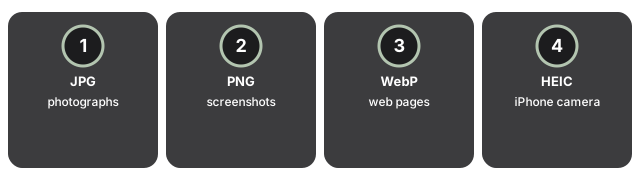
Before you start a conversion, match the output format to how the image will be used.
- JPG - photographs that will be emailed, uploaded to a CMS, or shared across platforms. Lossy, small files, no transparency.
- PNG - UI screenshots, diagrams, anything needing transparency, and anything you might edit again later. Lossless, larger files.
- WebP - web pages where you control the audience and know modern browsers are in use. About 25-35% smaller than a matched-quality JPG or PNG, supports transparency.
- HEIC - iPhone camera roll exports kept inside the Apple ecosystem. Skip when sharing with Windows, Android, or third-party CMSes.
- SVG - logos, icons, illustrations, and anything that must scale to any size. Not suitable for photographs.
When in doubt, convert to JPG for photos and PNG for anything with sharp edges; you can re-convert later without reopening the source. Whichever output you pick, open the converted file once before you ship it and check color, transparency, and resolution survived the trip.
Other freetoolonline tools you might need
Image conversion is usually one step in a larger job. Before assembling a document you may want to compress an image or combine images into a PDF, and the PDF tools hub covers the rest of that workflow. For Base64 embedded inline, the developer tools hub adds JSON parsing, CSS minification, and JavaScript minification. The device test tools hub checks camera, microphone, and screen before a presentation or call.
Need a format not listed above? The site map is the full catalog of converters and companion guides.
Format-pair notes worth knowing before you convert
HEIC to JPG. The iPhone-default format that Windows, Android, and most CMSes still refuse: HEIC to JPG is the direct route.
SVG to PNG or WebP. Open SVG to PNG / WebP, pick a raster output, set the export size, and download. PNG keeps the transparent areas of the source SVG intact, so it is the right raster target when transparency matters; since SVG has no native pixel size, choose the export width that matches your destination before you download.
PNG to SVG. PNG to SVG by Interpolation Algorithm is genuinely lossy in shape: it traces the bitmap into a vector approximation rather than recovering the original geometry, so it works well for simple icons, logos, and high-contrast UI marks and less well for photographs or images with subtle gradients. Run the output through a visual review before shipping.
Image to Base64. Image To Base64 encodes a JPG, PNG, WebP, SVG, or HEIC into a string you can paste into inline CSS, a data URI in an HTML <img> tag, or a JSON payload; Base64 To Image decodes one back into a downloadable file. Watch the prefix header: copy the full data:image/png;base64,... string when the destination is a CSS or HTML embed, and copy only the payload after the comma when the destination is a JSON or programming-language literal. Encoded content is larger than the source file, so reserve it for small icons and inline assets rather than photographs.
GIF to frames. Convert GIF To Images Frame pulls every frame, every Nth frame, or a specific comma-separated list, and saves each as PNG, JPG, or WebP - one frame at a time or the whole set as a ZIP. Two jobs cover most of what this is for: line several frames up in an editor to build a sprite sheet, or keep one representative frame as a lightweight stand-in for the animation - a single JPG frame is a fraction of the original GIF's file size, so a page or email loads faster showing that instead of the full animation.
Last reviewed: 2026-10-04
Free Tool Online Editorial TeamWhy trust these tools
- Ten-plus years of web tooling. The freetoolonline editorial team has shipped browser-based utilities since 2015. The goal has never changed: get you to a working output fast, without an install.
- No install, no sign-up. Open a tool and get a working output in seconds - nothing to download and no account to create. Tools that need heavy processing run it on our service, so even a low-powered machine gets the job done.
- Analytics stops at the page view. We measure which pages get visited, not what you type or upload inside a tool. There is nothing to sign in to and no profile is attached to your input.
- Open-source core components. The processing engines underneath (libheif, libde265, pdf-lib, terser, clean-css, ffmpeg.wasm, and others) are public and audit-able. We link to each one in its tool page's footer.
- Free, with or without ads. All tools are fully functional without sign-up. The Disable Ads button in the header is always available if you need a distraction-free run.
Frequently Asked Questions
Which output format should I choose for a photo shared with anyone?
JPG is the safe universal pick. It opens on every OS and every email or chat client without a codec install. Use HEIC to JPG if your source is an iPhone photo, or SVG to PNG for vector artwork you need to flatten.
When does WebP make sense over JPG or PNG?
Use WebP when you control the destination and know modern browsers are in use (web pages, product galleries, apps). It typically ships 25-35% smaller than a matched-quality JPG or PNG and supports transparency. Skip WebP for email attachments or CMS uploads that still require JPG or PNG.
Will EXIF metadata survive the conversion?
On iPhone-era formats (HEIC) the EXIF block is preserved by default, so your timestamp, GPS, camera model, and lens data carry into the JPG. If you are sharing publicly and want to strip location or camera-ID data, toggle the EXIF option off in the tool's Settings before download.
Can I convert a screenshot to SVG?
Not meaningfully. SVG is for vectors; screenshots are pixels. PNG to SVG traces simple shapes, but complex UI or photos will not trace cleanly. For icons and logos, start from the original vector (Illustrator, Figma, or Inkscape) when you can.
What if I need to compress instead of convert?
See the Image Tools hub. Compress Image reduces file size without changing the format. The converter tools here change the format; the editing tools change the pixels.
Which tool should you use?
- HEIC to JPG for iPhone photos that need wider compatibility.
- SVG to PNG and WEBP Converter when you need raster outputs for web or presentations.
- PNG to SVG by Interpolation Algorithm to generate vector-like assets from bitmaps.
- Image To Base64 to embed images directly in code or data.
- Base64 To Image to recover a file from encoded content.
- Convert GIF To Images Frame to edit or reuse animation frames.