
Image Tools
Use these image tools to compress a photo for the web, resize it to exact pixel dimensions, crop it to the subject, edit it with filters and layers, or build a short GIF. There are 28 in all, and each one opens in a browser tab with no software to download, so pick the one that matches your task.

-
 Image File Compressor (JPG, PNG, WebP)
Compress JPG, PNG, or WebP online with AI quality selection.
-
 Resize Image Online - JPG, PNG & WebP Image Resizer
Resize image online - set Max Width and Max Height in pixels, aspect ratio always kept, and export JPG, PNG, or WebP.
-
 Crop & Rotate Image Online - Free Image Cropper Tool
Crop image online to a free-form area or a preset ratio (1:1, 16:9, 4:3, 2:3); rotate in 45° steps or at a free angle.
-
 Photo Editor Online - Filters, Layers & Text, Free
Photo editor online - filters, color & brightness tuning, multi-layer overlays, text, and borders at up to 8K resolution.
-
 GIF Maker Online - Build GIFs from Video or Images
Turn a short video clip into an animated GIF - trim with start-point and duration sliders, set output width / height, pick the frame rate, then download.
-
 Image Optimizer Online - PageSpeed Insights Ready
Image optimizer online - compress JPG, PNG, and WebP for PageSpeed Insights.
-
 JPEG Compression Level Checker - Inspect JPG Quality
JPEG compression level checker - inspect the quality value a JPG was saved with, estimate headroom for further compression, and compare before and after.
-
 ImageMagick Online - Run Commands in Your Browser
ImageMagick online - run resize, convert, composite, and effect commands directly in your browser.
-
 Steganography - Hide Text in a PNG Image
Steganography - Hide a secret text message inside an ordinary PNG image - the picture looks identical to the eye but carries your hidden note in its pixels.
-
 Remove Photo Background - Private, No Upload
Photos stay on your device - no upload, no account.
-
 Document Scanner (to PDF) - Free Online
Document Scanner (to PDF) - Turn one or more photos of a paper document into a single PDF, right in this browser - no upload, no app to install.
-
 Image to Text (OCR) - Free Online
Image to Text (OCR) - extract text from a photo or a pasted screenshot entirely in your browser, then tidy the result.
-
 Passport Photo Maker - No Upload Required
Passport Photo Maker - Crop a photo to an exact passport or visa size, with optional on-device AI white/blue/grey backdrop - no upload, no app to install.
-
 AI Photo Restoration - 2x & 4x Image Upscaler
Restore and upscale a photo in your browser - quick 2x upscale (8 MB model) or 4x restore for blurry, compressed shots.
-
 Image EXIF Metadata Viewer - Free Online
Image EXIF Metadata Viewer - See what camera, date, and GPS tags your photos still carry before you share them.
-
 Image Metadata (EXIF) Remover - Free Online
Remove EXIF, IPTC, and XMP metadata from a photo in your browser and download a clean JPEG - nothing is uploaded.
-
 Image Color Palette Extractor - Free Online
Image Color Palette Extractor - Extract the top HEX colors from any image in your browser.
-
 Favicon Generator - Free Online
Favicon Generator - Resize an image into favicon PNG sizes and a favicon.ico in the browser.
-
 Add Watermark to Image - Free Online
Add Watermark to Image - Add a text watermark to a photo without installing anything or creating an account.
-
 Signature Maker - Draw & Download a Signature
Draw a signature with your mouse, finger, or stylus and download it as a PNG - no upload, no account, done entirely in your browser.
-
 Meme Maker - Add Captions, No Upload
Add a top and bottom caption to a photo, toggle ALL CAPS, and download it as a PNG or JPEG meme - no upload, no account, done in your browser.
-
 Blur Faces in Photos Online - Private, On-Device
Blur or pixelate every face in a photo before you share it.
-
 AI Watermark Detector - Check Content Credentials (C2PA)
Check an image for AI provenance marks - C2PA Content Credentials, the IPTC AI-generated label, DALL-E and Firefly metadata.
-
 Photo Translator - Translate Text in a Photo, On-Device
Read the printed English text in a photo or screenshot and translate it into Spanish, French, Vietnamese and more - all in your browser, nothing uploaded.
-
 Alt Text Generator - Describe Images On-Device
Turn images into draft alt text in your browser - batch captions with copyable alt attributes, no upload, and a writing workbench that works with zero download.
-
 AI Photo Colorizer - Add Color, No Upload
Add color to a black-and-white photo with AI that runs in your browser - no upload.
-
 Duplicate & Similar Photo Finder - Local, No Upload
Find exact duplicate and near-duplicate photos in your browser.
-
 Object Remover - AI Photo Eraser, No Upload
Paint over an unwanted object or person and erase it from your photo.
Make images faster, clearer, and ready to share
Image editing is often about speed and consistency. Resize a photo for a website hero, crop a product image for a marketplace, or compress a batch of screenshots for a support ticket - no platform compatibility issue to work around in any of them.
Tips for clean, consistent images
Decide the target size before you start, so you avoid multiple rounds of resizing. Use cropping to remove background clutter and keep the focal point centered. Consistency matters across a gallery or product list, so use the same aspect ratio for related images, check file sizes after each step, and keep backups of the originals. Images are processed only as long as needed to complete your task and then removed.
Quick comparison
| Tool | Best for | Key control | What you get |
|---|---|---|---|
| Compress Image | Smaller files | Compression level + preview | Reduced-size JPG/PNG |
| Resize Image | Exact dimensions | Width/height | New pixel size |
| Crop Image | Better framing | Crop area | Trimmed image |
| Insights Image Optimizer | PageSpeed | Optimization presets | Web-friendly output |
| JPEG Compression Level | Quality tuning | Compression estimate | Quick quality check |
Quality decisions before you export
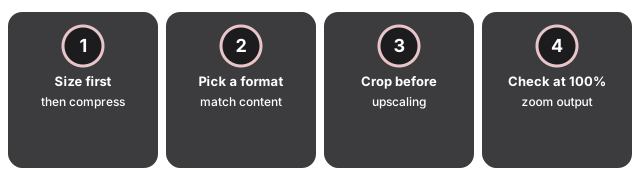
- Resize, then crop, then compress - in that order. Resizing a 6000×4000 DSLR shot down to 1600×1067 removes roughly 85% of the pixels before the encoder even runs, which makes the remaining JPEG or WebP compression much less visible.
- Pick a format that matches the content. Photos compress best as JPEG or WebP. Screenshots of UI, diagrams, and line art stay sharper as PNG or WebP-lossless because the encoder preserves hard edges. For animations, GIF remains the most compatible option.
- Crop before upscaling, never after. Upscaling invents pixels; cropping after an upscale amplifies any blur. For a tight crop at full resolution, start from the original.
- Check the result at 100% zoom. Compression artifacts hide at thumbnail size and appear on a user's retina display. Open the output at full zoom before shipping.
What each tool is good at
Compressing a JPEG for a website or email attachment. Compress JPEG chooses a quality level that preserves visible detail while cutting file size. For bulk work and PageSpeed-style analysis, Insights Image Optimizer evaluates file weight and suggests a target.
Resizing to specific pixel dimensions. Resize Image accepts exact pixel widths or a percentage, preserves aspect ratio, and exports JPG, PNG, or WebP. Bicubic interpolation keeps edges crisp for photographs.
Cropping or rotating. Image Cropper and Rotator handles both: drag to set the crop box, rotate in 90° steps or at a free angle. Aspect-ratio presets cover the common social sizes.
Editing a photograph (filters, tones, overlays). Total Photo Editor ships filters, tonal adjustments, overlays, and text layers.
Building a short GIF from stills or a video clip. GIF Maker turns a sequence of images or a video segment into an animated GIF. For the reverse - extracting frames from an existing GIF - Extract GIF to Image Frames returns one PNG per frame.
Scripted or batch image processing. ImageMagick Online exposes the full command-line surface through a browser tab: resize, convert, composite, and effect chains without installing the binary locally. Best for one-off tasks where writing the command is faster than clicking through a GUI.
Each tool returns the same file shape the others expect, so chaining them works without a re-upload between steps: compress a JPEG whose dimensions are still wrong and the next stop is Resize Image, or Crop Image when only part of the frame needs to stay.
Where the work happens varies by tool. Some members run entirely in your browser, so the image never leaves your device; others send the file to the processing service over HTTPS. Check the page of the tool you open for its specific processing model.
The site map groups every image tool and guide by task.
Last reviewed: 2026-10-02
Free Tool Online Editorial TeamWhy trust these tools
- Ten-plus years of web tooling. The freetoolonline editorial team has shipped browser-based utilities since 2015. The goal has never changed: get you to a working output fast, without an install.
- No install, no sign-up. Open a tool and get a working output in seconds - nothing to download and no account to create. Tools that need heavy processing run it on our service, so even a low-powered machine gets the job done.
- Analytics stops at the page view. We measure which pages get visited, not what you type or upload inside a tool. There is nothing to sign in to and no profile is attached to your input.
- Open-source core components. The processing engines underneath (libheif, libde265, pdf-lib, terser, clean-css, ffmpeg.wasm, and others) are public and audit-able. We link to each one in its tool page's footer.
- Free, with or without ads. All tools are fully functional without sign-up. The Disable Ads button in the header is always available if you need a distraction-free run.
Frequently Asked Questions
Which tool should I use first when optimizing an image for the web?
Resize first, then compress. A 6000×4000 DSLR photo down to 1600×1067 pixels is an 85% pixel reduction before any encoder runs, which means the Compress Image step does less work and the artifacts stay invisible. For screenshots or diagrams, pick PNG or WebP-lossless so the edges stay sharp.
Are my images uploaded to a server?
It depends on which tool in this hub you pick, so the honest answer is per-tool. The Crop Image tool and the Photo Editor both run on your device using a browser canvas, so the file never leaves the tab. The Compress Image, Resize Image, GIF Maker, Insights Image Optimizer, JPEG Compression Level, and ImageMagick Online tools upload your image to a short-retention processing endpoint because they need server-side image-processing libraries that browsers do not ship.
Whichever path applies, the rule each tool follows is the same: the file is held only as long as the run needs, the temporary result download link rotates after a short retention window, and no account is required to use any tool in the hub. The per-tool page (the privacy line on the tool itself) is the source of truth - open the tool you plan to use and the FAQ on that page names the exact processing model in one sentence.
What is the maximum file size I can upload?
Most image tools handle single files up to about 100 MB comfortably in a modern desktop browser. Mobile browsers have less memory available, so aim for files under 20 MB on a phone. If a large batch stalls, split it in half and run two passes.
My photo has transparency - which output should I pick?
Pick PNG or WebP. JPG does not carry an alpha channel, so a transparent background becomes white or black when you export. If you need both small file size and transparency, WebP (lossless or high-quality lossy) is a recommended of both.
What if I need to convert formats, not edit pixels?
See the Image Converter Tools hub for format-focused tools like HEIC to JPG and SVG to PNG. The editing tools here change pixels (resize, crop, compress); the converter tools change the container.