
Completed, the compression value of your JPEG is:
What this JPEG compression-level checker does
JPEG compression-level checker reads the saved-quality value out of a JPG you received from a camera, a CMS, or a third party: upload the file and the tool reports the compression level in the JPEG header so you know how much headroom remains before further compression shows artefacts.
Free Online JPEG Compression Level Checker
Last reviewed: 2026-09-08
Free Tool Online Editorial TeamUpload a JPEG to read the quality level it was saved at - useful for photographers, designers, and web developers who need to know a file's compression headroom before the next save or compress pass. No install, no account required.
Acting on the result. Once you know the quality level, pair this check with compress image to shrink further, insights image optimizer to see PageSpeed-facing gains, or open the full image tools hub for resize, crop, and format-swap options - all routed through our fast HTTPS processing service.
Picking a target level for the next save. This reader tells you where a JPG stands today; Compress JPEG without losing quality: quality vs size picks the target level for your next save by task - web upload, archive, social, or email.
How the reading works
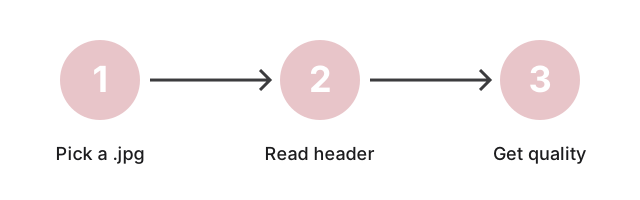
The reading takes a single upload through the HTTPS processing service: the JPG header is parsed server-side to read the recorded quality marker, the value is returned to the page, and the upload copy is rotated out after the retention window. The tool reads the marker only - it does not change or re-save the file - so the next decision (keep, re-compress for delivery, or hand off to a compress tool) gets made on real numbers.
There is no batch mode: the page reports one reading per upload and does not iterate a folder, so checking several JPGs means deciding on the file in front of you, then re-uploading the next one.
The accepted inputs are .jpeg and .jpg only, and both the upload filter and the server-side service reject any other extension before the read is attempted. PNG and GIF use lossless representations; HEIC, AVIF, and WebP have no equivalent quality scalar - so a non-JPEG file has to be converted to JPG first.
Reading the quality bands
The recorded number separates archive copies from delivery copies, which is what no screen-side visual check can tell you. Three bands cover the decision, and each one points at a different next step.
| Recorded quality | What the file is | Next step |
|---|---|---|
| High band, around 85 and above | The source for further work | Keep it as the archive, re-save from it for new delivery targets, and take it into compress image to hit a smaller target with predictable loss. If 80 is the delivery target, the archive belongs above that, not at the same level. |
| Mid band, roughly 65 to 85 | Already re-saved once; treat as a delivery copy | Branch the next save from a separate higher-quality original rather than from the JPG you just read, and do not feed it back through compress unless you have a higher-band archive. |
| Low band, below 65 | At the bottom of its quality budget | Stop re-compressing and go back to the original capture for a fresh master. A file flagged at quality 50 re-saved at 70 only bakes artefacts in. |
Reading the number first is what prevents the silent quality-floor problem, where every later save runs at or below an already-low starting point and the original detail is no longer recoverable.
Auditing a compression pass in two numbers
After re-saving a JPG through a separate compress tool, read the output back here as a second upload. The second reading reports the quality marker recorded by the compressor, making the round-trip auditable in two numbers - input quality and output quality - rather than a screen-side guess.
Checking headroom before you spend a compression pass
A reading costs one upload and settles whether the next compression pass can achieve anything, before you spend it.
Key Features of Our JPEG Compression Level Checker
- Reads the Recorded Quality Value: The tool reads the quality value the encoder wrote into the JPEG header, so you see the level the file was actually saved at - not an estimate - helping you understand the quality and potential loss of image data.
- Instant Results: Upload your JPEG image and get immediate results, enabling you to make quick decisions about your image quality.
- No Install Required: Run the checker from any modern browser with no software to download and nothing to set up. The JPEG you choose is sent over a secure connection, read on the server, and the recorded quality value comes straight back to the page. Works across most devices and platforms.
- Accessible for All Users: This tool is designed with both beginners and professionals in mind, featuring a simple interface that doesn't require technical knowledge to operate.
How to Use the JPEG Compression Level Checker
- Select Your JPEG File: Click to upload the JPEG file you want to analyze for compression.
- Analyze Compression Level: The tool instantly examines the JPEG to provide a compression level reading.
- Interpret Results: Use the displayed compression level to determine if the quality meets your requirements. This is particularly useful for print quality or high-resolution digital displays.
Frequently Asked Questions
What is JPEG Compression?
JPEG compression is a process that reduces the file size of an image by removing certain data. While this saves storage space and makes images easier to share online, it can reduce quality. Understanding compression levels is crucial for maintaining high-quality visuals, especially for professional use.
Why Use a JPEG Compression Level Checker?
This tool provides a fast, reliable way to assess the quality of JPEG files. Photographers, designers, and digital marketers frequently need to ensure that images meet certain standards. This tool gives them confidence in the quality of their JPEGs by providing insight into the compression level.
Does this tool support all JPEG formats?
Yes, the tool is designed to work with standard JPEG files, including those with different compression settings. This allows you to analyze JPEGs from various sources and devices with ease.
Conclusion: Ensure Image Quality with Our JPEG Compression Checker
With our free online JPEG Compression Level Checker, you can easily verify image quality and make informed decisions about your visuals. Use it today to analyze your JPEG files quickly and maintain the quality standards your projects deserve.