Free online photo editor: crop, resize, filter, and add text in your browser
If you searched for an online photo editor like Pixlr, the free photo editor on this site runs entirely in your browser: open a JPG, PNG, or WebP up to 8K, then crop, resize, tune color and brightness, stack layers, add text, and export. Nothing uploads and no account is needed.
Last reviewed: 2026-07-02
Reviewed by FreetoolOnline editorial teamPixlr is one familiar name people type when they want a browser photo editor rather than a desktop install. This guide is not about that product - it shows how to do the same everyday edits with the https://freetoolonline.com/image-tools/photo-editor.html tool here, which loads your file locally and keeps it on your device. Because the work happens in the page itself, there is no upload wait and no file sitting on a server after you close the tab.
| Limit | Value |
|---|---|
| Max image resolution | Up to 8K |
| Rotation step | 90-degree increments, or free angle |
Which edit lives where in the editor
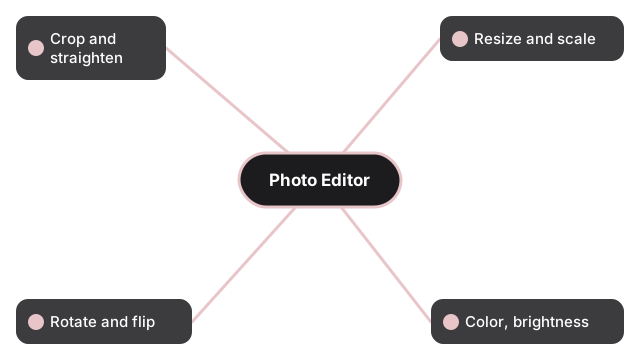
Most searches for an online editor come down to a handful of tasks. The table maps each one to where you do it and what format the export supports, so you can jump straight to the control you need.
| Task | Where in the editor | Export formats |
|---|---|---|
| Crop / straighten | Crop tool - drag the frame, then apply | JPG, PNG, WebP |
| Resize / scale | Resize - set new width or height in pixels | JPG, PNG, WebP |
| Rotate / flip | Transform - 90-degree steps or free angle | JPG, PNG, WebP |
| Color, brightness, exposure | Adjust - move the sliders and preview live | JPG, PNG, WebP |
| Filters | Filter panel - one click, adjustable strength | JPG, PNG, WebP |
| Text / captions | Text layer - type, then set font, size, color | PNG keeps transparency |
| Layers / overlays | Layer stack - reorder, set opacity, merge | PNG keeps transparency |
| Border / frame | Border - pick width and color | JPG, PNG, WebP |
A quick edit, start to finish
Open your image with the file button; the picture fills the canvas at its real resolution, up to 8K. Do the structural edits first - crop to the composition you want, then resize if you need smaller dimensions for a web upload. Next tune the look: pull the brightness and exposure sliders while watching the live preview, then try a filter if you want a preset tone. Add a text layer for a caption or watermark, keeping it on its own layer so you can move or delete it without touching the photo. When it looks right, export. Choose PNG when you need a transparent background or the sharpest text edges, and JPG when a smaller file matters more than transparency.
Why edit in the browser
A browser editor answers the same need a downloaded app does for one-off edits, without the install. Your file is read into the page and processed on your own machine, so a private photo never leaves your device and there is no queue while a server works on it. The trade-off is that very large batch jobs suit a desktop program better; for a single crop, a resize before uploading, a caption, or a colour fix, the in-browser path is faster because there is nothing to wait for. Everything above is free and works on a laptop or a phone.
For the choice between a browser photo editor, a desktop graphics program, and an automated batch processor, the guide photo editor vs graphics app vs batch processor maps each tool to the tasks it handles best.