How to Record Your Screen Online - Screen, Camera, or Microphone
A screen recorder captures your screen, camera, or microphone right in the browser. Pick a source, then Start, Pause, and Stop while a live timer runs. Turn on optional face blur, download the clip as WebM, or convert it to MP4. Everything stays on your device, with no upload and no account.
Last reviewed: 2026-06-16
| Property | Value |
|---|---|
| Format | Online, no install, no sign-up |
| Cost | Free |
| Implementing tool | https://freetoolonline.com/device-test-tools/screen-recorder.html |
Steps
Steps to record your screen online: open Screen Recorder, pick screen camera or microphone, start capture, then download WebM or convert to MP4 on your device.

- Pick a source: camera, camera and microphone, microphone only, or your screen.
- Optional: turn on face blur and set the blur strength before you start, on a supported browser.
- Click Start, then Pause or Resume as needed, and watch the live mm:ss timer.
- Click Stop; the clip appears with playback controls and a Download link.
- Optional: convert the clip to MP4 in the browser, then download it.
Recording sources
Four sources are available. Camera records video only; camera and microphone records both; microphone only captures audio; screen records a window, tab, or full display. Recording starts only after you click Start and grant the browser permission. If you end a screen share from the browser chrome, recording stops on its own.
Optional face blur
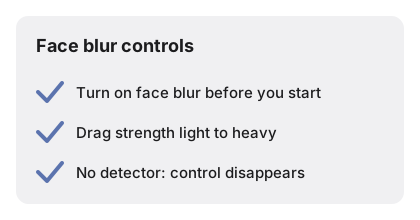

On a browser with the face detector available, face blur hides detected faces on your device before the recorder sees the frame. Set the blur strength from 1 to 10. Where the detector is missing, recording continues without blur and the control is hidden. The settings below are what the tool uses.
| Setting | Value |
|---|---|
| Blur strength range | 1 to 10 (default 5) |
| MP4 video codec | H.264, CRF 22 |
| MP4 audio | AAC, 128 kbps |
| MP4 module size | About 31 MB, loaded once |
WebM and MP4
WebM and MP4 on How to Record Your Screen Online screen recorder exports WebM by default; click Convert to MP4 to load a one-time H.264 module of about 31 MB.
Privacy
Privacy on How to Record Your Screen Online means clips stay on your device - no upload widget, no account, and nothing is stored on a server.
Before recording, you can check your screen for dead pixels, color accuracy, or brightness evenness - screen test for laptop 5 minute checklist runs the full check in under five minutes. For a comparison of browser-based vs app-based display tests, see screen test online vs app which is more accurate.