Online Alarm Clock: Step-by-Step Guide
The Online Alarm Clock tool lets you pick a time and shows a bold on-screen alert the moment the browser's clock reaches it. This guide covers how to set the alarm, what Set alarm and Clear alarm actually do, and what to expect - and not expect - when the alarm fires.
freetoolonline.com Editorial TeamSetting the alarm
The alarm field is your browser's native time picker on Alarm Clock - type the hour and minute directly, or click the clock icon to pick them, then press Set alarm.
What Set alarm and Clear alarm do
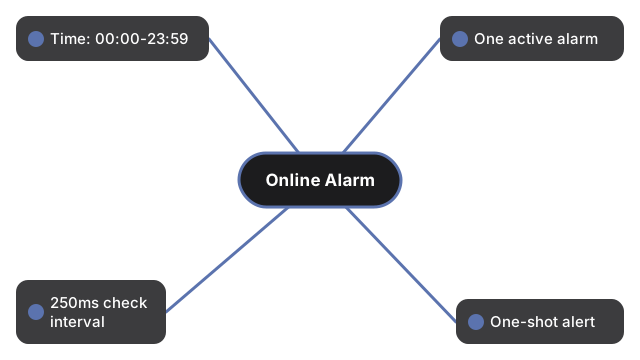
Set alarm reads whatever time is currently in the field and stores it as the target; setting a new time before the alarm fires replaces the old target rather than adding a second one. Clear alarm cancels the stored target, resets the status line back to "No alarm set.", and clears any alert message that was showing. The live time readout above the controls keeps ticking the whole time, whether or not an alarm is set.
| Setting | Range / value | Notes |
|---|---|---|
| Alarm time | 00:00-23:59 | 24-hour time picked from the native browser time input |
| Active alarms | 1 at a time | Setting a new time replaces the previous target |
| Check interval | Every 250 milliseconds | How often the page compares the live clock to the target |
| Alert repeat | Once | The "Alarm!" message shows once per fire, not repeatedly for the rest of the minute |
What happens when the alarm fires
A bold "Alarm! It is HH:MM now." message appears under the controls on Alarm Clock the moment the live clock's hour and minute match your set time. That message is the only signal.
Alarm clock vs. the other clock and timer tools
The alarm clock fires at a fixed clock time you choose. The companion countdown timer instead counts down from a duration (minutes and seconds) rather than a time of day, and the digital clock and analog clock simply show the current time with no alert at all. Use the alarm clock when you care about a specific time; use the countdown timer when you care about how much time is left; use the plain clocks when you just want to check the time. For the digital clock's own step-by-step walkthrough, see Digital Clock - step by step.
Common uses
Readers reach for it as a short desk reminder, a nap wake-up check, or a cue to switch tasks - none of which needs another app installed.
What this tool does not do
It will not ring if the tab is closed or sleeping, it is not a phone alarm, and it does not sync across devices.
Privacy
The page runs entirely in your browser tab using your device clock - nothing is uploaded and no account is required.
Companion tools
Reach for the analog clock or countdown timer pages instead when you need a face clock or a timed countdown rather than an alert at a set time.
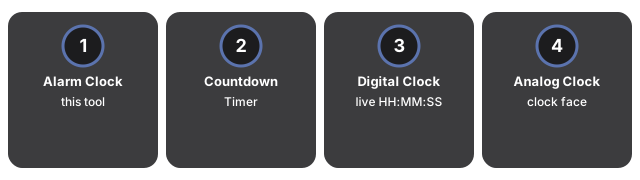
- Online Alarm Clock - the tool itself.
- Countdown Timer Online - counts down from a duration instead of firing at a fixed time.
- Digital Clock Online - a large live HH:MM:SS readout of the current time, with no alarm.
- Analog Clock Online - the same live time as a sweeping clock face.
- Utility tools hub - the rest of the everyday conversion and generator tools on this site.
Frequently asked questions
Does the alarm make a sound when it fires?
No. It only shows an on-screen "Alarm!" message - there is no beep, chime, vibration, or system notification.
Can I set more than one alarm at the same time?
Not on a single instance of this page - setting a new alarm time replaces the previous target. Open the page in a second tab or window if you need two independent alarms.
Does the alarm still fire if I close the tab or the browser?
No. The check only runs while this tab stays open - there is no background process, so closing the tab or the browser stops it completely.
How accurate is the alarm time?
It compares against your device's own local clock, checked every 250 milliseconds, so it fires within about a quarter-second of the target minute as long as the tab stays open and active. There is no sync to an external time server, so overall accuracy is only as good as your device's clock and timezone setting.
Why trust these tools
- Ten-plus years of web tooling. The freetoolonline editorial team has shipped browser-based utilities since 2015. The goal has never changed: get you to a working output fast, without an install.
- No install, no sign-up. Open a tool and get a working output in seconds - nothing to download and no account to create. Tools that need heavy processing run it on our service, so even a low-powered machine gets the job done.
- Analytics stops at the page view. We measure which pages get visited, not what you type or upload inside a tool. There is nothing to sign in to and no profile is attached to your input.
- Open-source core components. The processing engines underneath (libheif, libde265, pdf-lib, terser, clean-css, ffmpeg.wasm, and others) are public and audit-able. We link to each one in its tool page's footer.
- Free, with or without ads. All tools are fully functional without sign-up. The Disable Ads button in the header is always available if you need a distraction-free run.