How to Hide a Message in an Image (Steganography, Free + In-Browser)
Steganography hides a short text message inside the pixels of an ordinary image, so the picture looks unchanged but secretly carries your note. This guide shows how to hide a message in a PNG and read it back later, optionally locked with a password - all in your browser, so the image and the message never leave your device.
Last reviewed: 2026-06-16
| Property | Value |
|---|---|
| Format | Online, no install, no sign-up |
| Cost | Free |
| Implementing tool | https://freetoolonline.com/image-tools/steganography.html |
How to hide a message in an image

- Open the Steganography tool and keep the mode on "Hide a message in an image".
- Choose a cover image. A PNG works best; a larger image holds a longer message.
- Type the secret message you want to hide. The tool shows the most characters that image can hold before you embed.
- If you want, add a password so only someone who knows it can read the message back.
- Click the hide button and download the result. Keep it as a PNG.
How to read a hidden message back
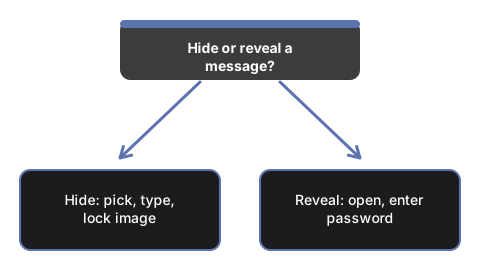
- Open the same tool and switch the mode to "Reveal a hidden message".
- Choose the PNG that was made with this tool.
- If the message was locked, enter the password. The hidden text appears on the page.
Why the result has to stay a PNG
Why the result has to stay a PNG on How to Hide a Message in an Image (Steganography) is that lossless PNG keeps the hidden least-significant-bit payload intact.
How much text an image can hold
How much text an image can hold on How to Hide a Message in an Image (Steganography) scales with pixels - roughly three bits per pixel means short notes fit, novels do not.
| Image size | Pixels | Approx. characters |
|---|---|---|
| 64 x 64 | 4096 | about 762 |
| 256 x 256 | 65536 | about 12282 |
| 512 x 512 | 262144 | about 49146 |
If a message is too long for the chosen image, the tool tells you the maximum and stops rather than cutting the text off silently.
Is it private?
Is it private on How to Hide a Message in an Image (Steganography) means yes for processing - the image and message never leave your browser tab.
A related browser tool that converts encoded data directly into an image file - rather than hiding text inside an existing photo - is base64 to image; it decodes a base64 string and renders the result as a downloadable PNG or JPG without any upload. For more on how browser-based image tools handle data privacy at scale, see what we learned running free in-browser image tools for 100k monthly users.