Password generator: when to use it
The Password Generator creates a random password in your browser using the Web Crypto secure random generator. Nothing is uploaded. This guide explains the situations where it saves you from guessable or reused passwords.
freetoolonline.com Editorial TeamAccount creation
Account creation is the right time to set a strong password from scratch. The generator starts at 16 characters with all four sets - lowercase, uppercase, digits, and symbols - enabled, which gives around 98 bits of estimated entropy. Paste the output into the new-password field and store it in your password manager before you close the tab, since the tool does not save anything between visits.
Password reset
A forced reset is a good moment to move away from a password you have used before. Type in a new one you invented tends to drift back to familiar patterns (dictionary words, birth years, repeated characters). The generator avoids that: each character is chosen with the browser secure random generator, so no personal detail can end up in the output.
Replacing a reused password
Using the same password on two services means one breach exposes both. When you find a reused password, open the generator, set a length of 16 or more, and copy a fresh one into the site you use less often first, then the one you use more often. Because the tool runs entirely in your browser and produces no history, the two passwords are unrelated even if you generate them back to back in the same session.
When a site bans certain characters
When a site bans certain characters from passwords, the symbols box is the first thing to uncheck. Uncheck the symbols box to remove them from the pool, then add a few characters to the length slider to make up the reduced entropy. For example, dropping symbols from a 16-character password cuts roughly 15 bits; bumping the length to 19 restores it. The strength label updates in real time so you can see when you have recovered the lost entropy.
When you are on a shared computer
On a shared computer, the generator is safe to use because it runs locally and produces no history - refreshing the tab clears the output and nothing is saved. If you use it on a shared or public computer, copy the password straight to the destination and close the tab. Do not copy it into a plain-text file or leave the tab open.
Reading and typing the password by hand
Reading and typing a generated password by hand is easier because the tool skips look-alike characters on purpose: lowercase omits l and o, uppercase omits I and O, and digits omit 0 and 1. If you must read the password off a screen and type it elsewhere (a TV login, for example), that trade makes the password easier to transcribe without misreading a one for an el.
When the generator is not the right choice
The generator is not the right choice when you have no password manager to store the result - a randomly generated output only helps if kept somewhere safe before closing the tab. If you have no password manager and must memorise the password, a generator output of 16+ random characters is not realistic to remember. In that case a passphrase (four unrelated words, 30+ characters) is easier to recall while still being long. The generator suits cases where a manager handles storage; memory suits cases where it does not.
Length range and empty-selection safeguard
The length slider runs from 4 to 64 characters, not just the 16-character default described above - drag it up for a high-value account or down if a site enforces a short maximum. If you uncheck every character set at once, the tool does not generate a password at all; it shows a message asking you to turn at least one set back on, so you never end up copying an empty or broken result.
Companion guides
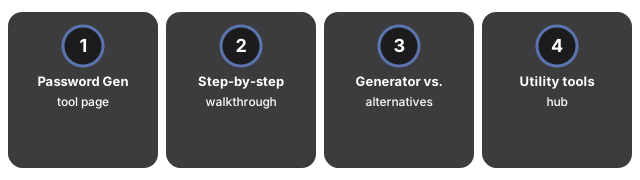
Companion guides for related password tasks:
- Password Generator tool - generate a strong password in-browser with no upload.
- Password generator step by step - walkthrough of every control on the tool page.
- Password generator vs. alternatives - how the in-browser approach compares to typing your own.
- Utility tools hub - the full set of browser-only helpers.
Frequently asked questions
Frequently asked questions about when to use the Password Generator:
How often should I generate a new password?
Generate a new password whenever you create an account, reset a forgotten one, or find a reused one. Changing strong, unique passwords on a schedule is less important than making sure each account has its own password in the first place.
Is a 16-character password long enough?
With all four character sets on, 16 characters gives around 98 bits of estimated entropy - marked Very strong by the tool. That is more than enough for most accounts. For high-value targets like a primary email or bank, 20 characters adds another 24 bits with no extra effort.
What if the site does not accept the generated password?
Try unchecking the symbols box first, since many sites block non-alphanumeric characters. If the site also caps length, lower the slider to match. Adjust until the site accepts the input, then click Generate to roll a fresh password with those constraints.
Can I use the same generated password on two sites?
No - reusing a password defeats the point. If a breach exposes the shared password, both accounts are at risk. Click Generate once per account and store each password in a manager so you never need to reuse one.
Why trust these tools
- Ten-plus years of web tooling. The freetoolonline editorial team has shipped browser-based utilities since 2015. The goal has never changed: get you to a working output fast, without an install.
- No install, no sign-up. Open a tool and get a working output in seconds - nothing to download and no account to create. Tools that need heavy processing run it on our service, so even a low-powered machine gets the job done.
- Analytics stops at the page view. We measure which pages get visited, not what you type or upload inside a tool. There is nothing to sign in to and no profile is attached to your input.
- Open-source core components. The processing engines underneath (libheif, libde265, pdf-lib, terser, clean-css, ffmpeg.wasm, and others) are public and audit-able. We link to each one in its tool page's footer.
- Free, with or without ads. All tools are fully functional without sign-up. The Disable Ads button in the header is always available if you need a distraction-free run.