How to Use the Event Time Countdown - Step by Step
Event Time Countdown turns one dated event into a live countdown plus a shareable link in four short steps: name the event, set its date and time, pick the announced timezone, and copy the link. Everything runs in the browser - no account and no install.
Step 1 - open the tool and name the event
Go to Event Time Countdown. The page loads with a sample event already ticking, so you can see the layout before touching anything. Type your event's name into the Event field - up to 80 characters, for example "Season finale watch party" or "v2.0 launch".
Step 2 - set the date and start time
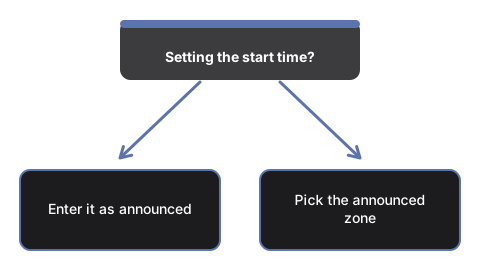
Use the "Starts at" date-time picker to enter the day and the wall-clock start time exactly as it was announced. Do not convert it to your own time first - that is the tool's job, and hand-converting invites the classic one-hour daylight-saving mistake.
Step 3 - pick the timezone the time was announced in
In the Timezone box, type part of the zone or city name - "New_York", "London", "Ho_Chi_Minh" - and pick the match from the suggestion list. The list comes from the browser's own timezone database, so every IANA zone is available. If the box shows a hint asking you to pick from the list, the name is not a valid zone yet; keep typing until a suggestion matches.
Step 4 - read the result and copy the link
The countdown starts ticking immediately: days, hours, minutes, and seconds until the moment. Below it, one line states the event in your own timezone, detected automatically, and a world table lists the same instant in the event's zone plus New York, Los Angeles, London, Paris, Tokyo, and Sydney. Press Copy link and share the URL anywhere - chat, email, a stream description. Whoever opens it sees the same event, already converted to their own zone.
What recipients see
The link carries the event name, the exact instant, and the announced zone. A recipient in Berlin sees the Berlin wall-clock time; a recipient in Sydney sees theirs. After the moment passes, the display flips to "started" and counts up, so late arrivals see how long ago it began. Keep in mind the countdown ticks only while the tab is open - it does not notify in the background.
Wondering whether this is the right tool for your case? See when to use Event Time Countdown or compare it against the alternatives.
Why trust these tools
- Ten-plus years of web tooling. The freetoolonline editorial team has shipped browser-based utilities since 2015. The goal has never changed: get you to a working output fast, without an install.
- No install, no sign-up. Open a tool and get a working output in seconds - nothing to download and no account to create. Tools that need heavy processing run it on our service, so even a low-powered machine gets the job done.
- Analytics stops at the page view. We measure which pages get visited, not what you type or upload inside a tool. There is nothing to sign in to and no profile is attached to your input.
- Open-source core components. The processing engines underneath (libheif, libde265, pdf-lib, terser, clean-css, ffmpeg.wasm, and others) are public and audit-able. We link to each one in its tool page's footer.
- Free, with or without ads. All tools are fully functional without sign-up. The Disable Ads button in the header is always available if you need a distraction-free run.