Countdown Timer Online: Step-by-Step Guide
The Countdown Timer Online tool counts down from any duration you enter in minutes and seconds. This guide covers how to set the duration, what Start, Pause, and Reset actually do, and what to expect - and not expect - when the countdown reaches zero.
freetoolonline.com Editorial TeamSetting the duration
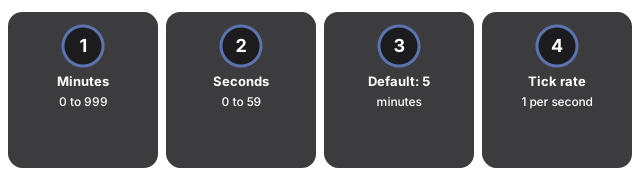
Setting the duration on Countdown Timer Online: type Minutes (0-999) and Seconds (0-59) before you press Start; the page opens at 5:00 and those fields set how long the countdown will run.
Start, Pause, and Reset
Start begins the countdown: the display decreases by one second, once per second, until it reaches 00:00. Pause stops the countdown exactly where it is without losing the remaining time - clicking Start again continues from that same point rather than restarting. Reset stops the countdown and returns the display to whatever duration is currently in the Minutes and Seconds fields.
| Setting | Range / value | Notes |
|---|---|---|
| Minutes | 0-999 | Whole minutes; combined with Seconds for the total duration |
| Seconds | 0-59 | Added to Minutes x 60 for the total duration |
| Default duration | 5 minutes 0 seconds | Shown on page load, before you change anything |
| Tick rate | Once per second | The display updates every 1,000 milliseconds while running |
What happens when it reaches zero
When the display reaches 00:00, the countdown stops on its own and a "Time is up!" message appears underneath it. That is the only signal the page gives - there is no beep, chime, or system notification, so if you are not looking at the tab you can miss the moment it finishes. Reset clears the message and returns the display to the duration in the Minutes/Seconds fields, ready to run again.
Countdown timer vs. the clock tools
The countdown timer counts down to zero from a duration you choose. The companion digital clock and analog clock tools instead show the current time and update continuously in the background with no Start/Pause/Reset control and no target duration. Use the countdown timer when you care about time remaining; use the clock tools when you care about the time of day.
Common uses
Common uses for Countdown Timer Online include cooking or baking steps, workout intervals, time-boxed meetings, exam practice, and any short wait where you need an on-screen zero message without installing a timer app.
What this tool does not do
What this tool does not do: Countdown Timer Online is a browser-tab countdown that does not play a sound, vibrate, or fire a system notification at zero - only the on-screen message appears when time is up.
Privacy
Privacy on Countdown Timer Online means the countdown runs entirely in your browser tab: Minutes and Seconds values are not uploaded, no account is required, and the page makes no server round-trip while the timer runs.
Companion tools
Companion tools around Countdown Timer Online include Online Stopwatch for counting up, Digital Clock Online for wall time, and Analog Clock Online when you want a face instead of digits.
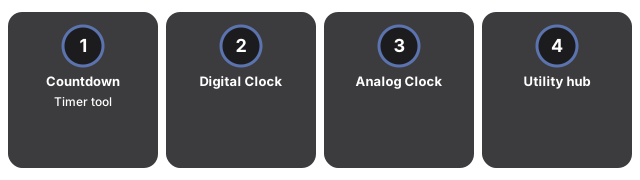
- Countdown Timer Online - the tool itself.
- Digital Clock Online - a large live HH:MM:SS readout of the current time, not a countdown.
- Analog Clock Online - the same live time as a sweeping clock face.
- Online Alarm Clock - rings at a fixed time of day you choose, instead of counting down from a duration.
- Utility tools hub - the rest of the everyday conversion and generator tools on this site.
Frequently asked questions
Does the timer make a sound when it finishes?
No. It only shows an on-screen "Time is up!" message - there is no beep, chime, or system notification.
Can I pause and resume without losing the remaining time?
Yes. Pause stops the countdown exactly where it is; clicking Start again continues from that same remaining time instead of restarting.
Does the countdown keep running if I switch tabs or close the browser?
Switching to another tab does not stop it - the countdown keeps running as long as this tab stays open. Closing the tab, or closing the browser, stops it completely, since there is no background process.
Can I run more than one countdown at the same time?
Not on a single instance of this page - it tracks one countdown at a time. Open the page in a second tab or window if you need two independent countdowns running at once.
Why trust these tools
- Ten-plus years of web tooling. The freetoolonline editorial team has shipped browser-based utilities since 2015. The goal has never changed: get you to a working output fast, without an install.
- No install, no sign-up. Open a tool and get a working output in seconds - nothing to download and no account to create. Tools that need heavy processing run it on our service, so even a low-powered machine gets the job done.
- Analytics stops at the page view. We measure which pages get visited, not what you type or upload inside a tool. There is nothing to sign in to and no profile is attached to your input.
- Open-source core components. The processing engines underneath (libheif, libde265, pdf-lib, terser, clean-css, ffmpeg.wasm, and others) are public and audit-able. We link to each one in its tool page's footer.
- Free, with or without ads. All tools are fully functional without sign-up. The Disable Ads button in the header is always available if you need a distraction-free run.