Code beautifier step by step: format JavaScript, CSS, HTML, and JSON
The free code beautifier on this site re-indents JavaScript, CSS, and HTML, and pretty-prints JSON, all in the browser. This guide walks through what to expect for each input type, what to do when the output looks wrong, and when to reach for a different tool instead.
freetoolonline.com Editorial TeamFormatting JavaScript
Paste a JavaScript snippet - a minified one-liner, a copy-pasted function, or a whole file - and click Format. The tool loads a self-hosted copy of the open-source js-beautify library and calls its JavaScript beautifier, which re-indents nested braces and parentheses and puts statements on their own lines. Pasting function add(a,b){return a+b;} returns the same function spread across multiple lines with the body indented inside the braces. The beautifier changes whitespace only - it does not rename variables, reorder statements, or change how the code behaves.
Formatting CSS
Formatting CSS in Code Formatter Beautifier: paste stylesheet text so the tool detects selector { property: value; } blocks, then run Format to indent nested rules without treating the paste as JavaScript.
Formatting HTML
Input starting with < is treated as HTML. A one-line snippet like <div><p>hi</p></div> comes back with each tag on its own line and children indented one level deeper than their parent. This is useful for HTML copied from a browser's "Copy outerHTML" command, which usually arrives as a single unreadable line. The HTML beautifier depends on the same engine's JavaScript and CSS beautifiers loading first (for any inline <script> or <style> blocks inside the markup), which the tool loads automatically before it runs.
Formatting JSON
JSON is checked before any of the above: if the input starts with {, [, a quote, a digit, or one of true, false, null, the tool parses it and prints it back with JSON.stringify(value, null, 2) - two-space indentation, one property per line. This is a genuine parse, not a text-based guess, so a malformed payload is caught: pasting {"a":1, (a trailing comma with nothing after it) returns a message starting with Invalid JSON: instead of a formatted result. Fix the reported error and paste again.
When the output looks wrong
Two things can go wrong. First, the language guess can miss - it is a heuristic based on the shape of the text, not a full parser for every language, so a language the tool was not built for (Python, Java, Go, and so on) still gets run through the JavaScript beautifier, and the result may not look right. Second, for JSON specifically, a parse error means the tool cannot format anything until the JSON is valid - re-paste after fixing the error the message reports. Neither case damages your input: the left pane keeps exactly what you pasted, so you can always try again.
Code beautifier vs JSON Parser
Both tools can pretty-print JSON, so it helps to know when to use which. The code beautifier is the right choice for JavaScript, CSS, or HTML, and it happens to pretty-print JSON too. The JSON Parser is the right choice when you specifically need to validate a payload with error highlighting, browse the result as an expandable tree, or check the type and array index of a specific field - it is built for JSON only and shows more about the structure than a plain indented printout.
Quick reference
Quick reference for Code Formatter Beautifier: pick or auto-detect JavaScript, CSS, HTML, or JSON, paste into the editor, run Format, then copy the indented output - all formatting stays in the browser tab.
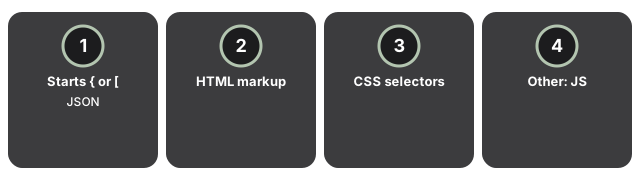
| Input starts with | Detected as | Engine used |
|---|---|---|
{, [, a quote, a digit, or true/false/null | JSON | JSON.stringify(value, null, 2) |
< | HTML | html_beautify (js-beautify) |
Rule blocks, e.g. selector { prop: value; } | CSS | css_beautify (js-beautify) |
| Anything else | JavaScript | js_beautify (js-beautify) |
Privacy
Privacy for Code Formatter Beautifier means formatting runs entirely in your browser tab: pasted code is never uploaded, sent to analytics, or written to any server while you beautify.
Companion guides
Companion guides for Code Formatter Beautifier point to the live beautifier tool, the JSON Parser when you only need JSON trees, and the Word Counter when you need plain-text stats instead of indentation.
- JSON parser: validate vs format vs tree view - the analogous decision guide for the JSON-only tool.
- CSS minifier vs compressor - the opposite job: shrinking a stylesheet instead of formatting it.
- Code beautifier tool - the tool itself.
- Developer tools hub - the full set, every one running in-browser with no upload.
Frequently asked questions
Does the beautifier change what my code does?
No. It changes whitespace and indentation only. The logic, values, and structure of the JavaScript, CSS, or HTML you pasted stay the same.
Why did my CSS get formatted as JavaScript?
Language detection is a heuristic on the shape of the text, not a full parser. If your CSS snippet includes a token the detector associates with JavaScript, it may be classified as JavaScript instead. Paste the CSS rule on its own to keep detection reliable.
Can I format Python, Java, or another language?
Not reliably. The tool recognises JavaScript, CSS, HTML, and JSON. Any other language still gets run through the JavaScript beautifier and the result may not look correct - check the output before you rely on it.
Is my code uploaded anywhere?
No. Formatting runs entirely in your browser tab; nothing you paste is sent to a server or an analytics service.
Why trust these tools
- Ten-plus years of web tooling. The freetoolonline editorial team has shipped browser-based utilities since 2015. The goal has never changed: get you to a working output fast, without an install.
- No install, no sign-up. Open a tool and get a working output in seconds - nothing to download and no account to create. Tools that need heavy processing run it on our service, so even a low-powered machine gets the job done.
- Analytics stops at the page view. We measure which pages get visited, not what you type or upload inside a tool. There is nothing to sign in to and no profile is attached to your input.
- Open-source core components. The processing engines underneath (libheif, libde265, pdf-lib, terser, clean-css, ffmpeg.wasm, and others) are public and audit-able. We link to each one in its tool page's footer.
- Free, with or without ads. All tools are fully functional without sign-up. The Disable Ads button in the header is always available if you need a distraction-free run.