How To Generate SRT Subtitles - Step By Step
A full run on Subtitle Generator - Make SRT and VTT Files is six moves: read the sample already on the page, choose your file, name the spoken language, load the caption model once, start the run, then edit the cues and download. The seventh move, pasting your own script, replaces the model entirely.
Step 1 - read the sample before you touch anything
The page arrives with three finished cues already in the table and their SRT rendering in the preview below, labelled as a sample. Nothing has been downloaded and nothing has been recognised at that point; the sample is there so you can see the exact output shape - numbered cues, a start timecode, an end timecode, one line of text - before deciding whether that is what you came for. Your first real run replaces it.
Step 2 - choose the file
The file button accepts video in MP4, M4V, WEBM and MOV and audio in MP3, WAV, M4A and OGG. Pick a video and the audio track is pulled out of the container in the page itself, so there is no separate extraction step and no upload; the file is read into memory and discarded when the run ends.
Two rejections happen here rather than later. Media longer than about fifteen minutes is refused, and the message names the length it measured. A container the browser cannot decode - MKV being the usual one - also stops here, because there is no server behind the page to fall back on.
Step 3 - name the spoken language
The language menu holds auto-detect plus twelve named languages. Auto-detect is a reasonable default for clear speech in a common language, but naming the language explicitly removes a decision the model would otherwise make from a short opening sample, and it is the cheapest accuracy you will get on this page. Set it before the run, not after.
Step 4 - load the caption model, once
The button that starts the download states its size in its own label, about 40 MB, and nothing is fetched until you click it. A progress bar tracks the fetch. WebGPU is used when the browser offers it and the run falls back to the CPU path when it does not, so the model loads either way; only the speed changes.
You pay this once. The browser keeps the weights, so a second video on this page starts immediately, and the same cached model also serves Speech to Text, so a visit there later does not download it again.
Step 5 - start the run and read the status line
Recognition walks the audio in thirty-second windows that overlap by two seconds, so no word is cut in half at a seam. The status line names the window it is working on and how many there are altogether, which is what tells you the run is progressing on a long file rather than stalled.
Cue boundaries are not an even division of the running time. They come from the model's own segment timings, so a pause in the speech becomes a gap between cues. If a boundary comes back missing or out of order, the page repairs it against the window edge and says in the status line that the timing for that run is approximate - a signal to check the ends of your cues before publishing.
Step 6 - edit the cues, then download SRT or VTT
Every cue's text is an input box in the table. Type in it and the change lands in the cue list immediately, and both download links plus the preview are rebuilt from that list - so what you download is always what the table currently says, never the raw first pass.
Editing text does not move the timecodes. That matters when you shorten a rambling cue or expand a clipped one: the start and end stay where recognition put them, so a heavy rewrite may want its ends nudged too. Overlapping cues are pushed apart automatically, empty cues are dropped, and everything is clamped inside the real media duration, so no player receives stacked or backwards cues.
Both formats are written from that same cue list, which is why they can never disagree with each other. The copy button puts the SRT text on the clipboard when you would rather paste than save a file.
The alternative route - your own script, no download
If you already have the words, skip steps 4 and 5 completely. Paste the script into the script box and start the timing pass. Long sentences are broken into caption-sized lines of about 84 characters, split at sentence ends first and at commas after that, and the lines are then spread across the duration of the file you picked, weighted by length so a long line gets more screen time than a short one. No cue is shorter than 1.2 seconds.
With no file loaded at all, the same pass times the script at roughly 160 words a minute, which is a normal speaking pace - useful when you are writing captions for a video that does not exist yet. Either way nothing is downloaded, the spelling is exactly what you typed, and the result lands in the same editable table with the same two export formats.
Before you publish
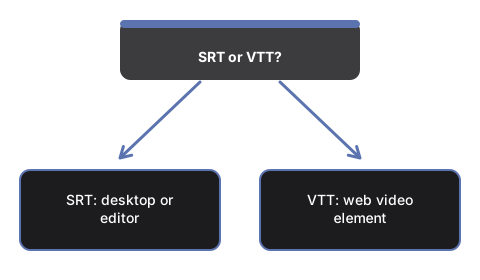
Read the first and last cue against the audio, since those are the two most likely to sit slightly wrong. Check names and any jargon, which is where a small model costs you most. Watch for a word repeated across a cue boundary, an artefact of the two-second window overlap that is not removed for you. Then load the file in whatever will play it - VTT for a video element on a page, SRT for a desktop player or a subtitle editor - and confirm the first cue lands on the first spoken word. If you have not yet decided whether this fits the file in front of you, SRT or VTT Subtitles - When To Make Them Yourself lays out the two paths and the fixed limits before you commit to a run.
Frequently Asked Questions
Does it translate the captions into another language?
No - it transcribes in the spoken language only and does not translate. Choose the spoken language for accuracy in step 3; there is no separate target-language setting for the output.
Can the subtitles be burned into the video file?
No - the tool exports a separate SRT or VTT file that you load alongside the video. It does not re-encode the video or burn the captions into it.
Does it use word-level "karaoke" timing?
No - cues are segment-level, timed from the model's own speech-segment boundaries rather than per-word alignment, so a whole phrase lands on one cue rather than word by word.
Can several files be processed in one run?
No - there is no batch mode. Each run handles one file, so multiple videos need to be run through one at a time.
Does it use the browser's built-in AI caption feature?
No - as of 2026-08 there is no built-in captioning API to call, so there is no zero-download recognition tier. Pasting your own script into the timing panel is the only no-download route.
Is an account needed, and is the file tracked anywhere?
No account or signup is needed, and the file is never sent to any analytics or tracking service. It is read into memory for the run and discarded afterward, with nothing stored beyond the page session.
Why trust these tools
- Ten-plus years of web tooling. The freetoolonline editorial team has shipped browser-based utilities since 2015. The goal has never changed: get you to a working output fast, without an install.
- No install, no sign-up. Open a tool and get a working output in seconds - nothing to download and no account to create. Tools that need heavy processing run it on our service, so even a low-powered machine gets the job done.
- Analytics stops at the page view. We measure which pages get visited, not what you type or upload inside a tool. There is nothing to sign in to and no profile is attached to your input.
- Open-source core components. The processing engines underneath (libheif, libde265, pdf-lib, terser, clean-css, ffmpeg.wasm, and others) are public and audit-able. We link to each one in its tool page's footer.
- Free, with or without ads. All tools are fully functional without sign-up. The Disable Ads button in the header is always available if you need a distraction-free run.