Remove an Object From a Photo in Your Browser - Step by Step
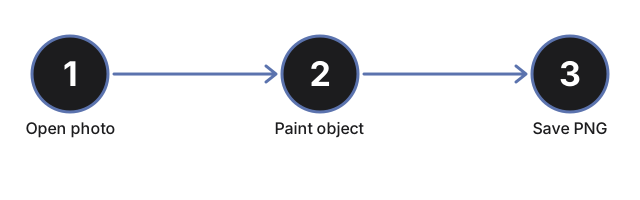
freetoolonline.com Editorial TeamThis walkthrough covers one full pass through the Object Remover: open a photo, brush over the thing you want gone, pick the AI fill or the instant Quick patch, and save the result as a PNG. Every step happens on your own device.
Check the example before opening anything
When the page loads, a prepared before-and-after pair is already on screen - a photo with an object, and the same photo with the object erased and the gap filled. It renders with no clicks and no download, and it is labeled as prepared ahead of time. Ten seconds with that pair tells you what a finished fill looks like before your own picture is involved.
The run, control by control
| Step | Control | What happens |
|---|---|---|
| 1 | Choose photo | The image opens on a canvas in the page; it is not sent anywhere |
| 2 | Brush size slider | Sets the stroke width, from 8 to 80 pixels, so a thin cable and a whole person both mask cleanly |
| 3 | Paint the mask | Drag with the pointer, or a finger on touch screens; the painted region shows as a red tint over the photo |
| 4 | Remove object (AI) | The first click starts a one-time model download of about 27 MB, then the painted region is filled with matching background |
| 5 | Quick patch | The no-download alternative: fills the painted region instantly from the surrounding pixels, at lower quality |
| 6 | Clear mask | Wipes the red tint so you can repaint and try again |
| 7 | Download | Saves the edited image as a standard PNG |
Step 4 in detail: the one-time download
The AI model is fetched only when you click the AI button, never in the background, and the size - about 27 MB - is stated on the page before you start. Your browser caches the model after that first fetch, so removing a second object, today or next week, needs no download at all. The fetch itself needs a working network connection; if you are somewhere without one, the Quick patch path still works.
Your resolution is not thrown away
To keep the fill fast, the model works on a version of the image whose long edge is capped at 1024 pixels. The page then composites that output back so that every pixel you did not paint stays the original at full resolution - only the painted region carries model output. A 4000-pixel photo comes back a 4000-pixel photo.
If the fill looks wrong
Clear the mask and paint again, tighter this time. The model does best when the stroke hugs the object, and when the background around it is sky, a wall, ground, water, or another repeating texture it can continue. A very large subject in front of busy, one-of-a-kind detail may never fill cleanly - the model invents plausible background rather than restoring what was truly behind the object, so review each result before keeping it. For a fast, rough alternative, run Quick patch on the same mask and compare.
One photo at a time
There is no batch or folder mode; each pass edits a single image, and nothing is kept once you leave the page. If your real goal is a transparent cutout rather than an erased object, switch to the Background Remover - that is a different job this page deliberately leaves alone.
Where to go from here
Not sure this is the right tool for the picture in front of you? Remove Objects From Photos Without Uploading - When To Use It covers the decision. To compare against cloud erasers and manual editing, see In-Browser Object Remover vs Cloud Erasers and Manual Editing.
Why trust these tools
- Ten-plus years of web tooling. The freetoolonline editorial team has shipped browser-based utilities since 2015. The goal has never changed: get you to a working output fast, without an install.
- No install, no sign-up. Open a tool and get a working output in seconds - nothing to download and no account to create. Tools that need heavy processing run it on our service, so even a low-powered machine gets the job done.
- Analytics stops at the page view. We measure which pages get visited, not what you type or upload inside a tool. There is nothing to sign in to and no profile is attached to your input.
- Open-source core components. The processing engines underneath (libheif, libde265, pdf-lib, terser, clean-css, ffmpeg.wasm, and others) are public and audit-able. We link to each one in its tool page's footer.
- Free, with or without ads. All tools are fully functional without sign-up. The Disable Ads button in the header is always available if you need a distraction-free run.