Password generator step by step: build a strong password in your browser
The free Password Generator on this site creates a random password entirely in your browser, using the operating system secure random generator. This guide walks through each control and explains the choices that make a password strong.
freetoolonline.com Editorial TeamHow to generate a password
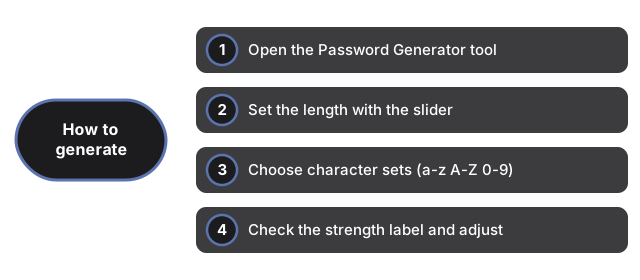
- Open the Password Generator tool. A password appears in the output box straight away, so you can copy one without touching a setting.
- Set the length with the slider. It runs from 4 to 64 characters and starts at 16; the password rebuilds as you drag.
- Choose your character sets with the four checkboxes: lowercase, uppercase, digits, and symbols. All four are on by default.
- Check the strength label next to the buttons (Weak, Fair, Strong, Very strong) with its bit count, and adjust the length or sets until you are happy.
- Click Copy to send the password to your clipboard, or Generate to roll a new one.
How length changes strength
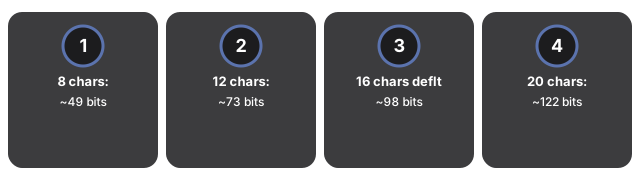
How length changes strength in Password Generator: with all four character sets on, each character comes from a pool of about 69 symbols (~6.1 bits), so longer passwords add entropy in a straight line and the strength label climbs with length.
| Length (all sets on) | Approx. entropy | Strength label |
|---|---|---|
| 8 characters | ~49 bits | Fair |
| 12 characters | ~73 bits | Strong |
| 16 characters (default) | ~98 bits | Very strong |
| 20 characters | ~122 bits | Very strong |
Turning a character set off shrinks the pool and lowers the bits at the same length, so if you must drop symbols or digits for a site that rejects them, add a few characters of length to make up the difference.
Why some characters are left out
The lowercase, uppercase, and digit sets skip look-alike characters on purpose: lowercase leaves out l and o, uppercase leaves out I and O, and digits leave out 0 and 1. That trade removes a handful of symbols from the pool but makes the password far easier to read off a screen and type by hand without confusing a one for an el.
What the strength label is (and is not)
The label is a math estimate from the length and the size of the character pool you enabled - roughly how many guesses an attacker would need on average. It is not a check against breach databases or a real cracking test, so treat "Very strong" as "long and random enough", not as a guarantee. The surest lever is length: a longer password beats a short one with more symbol types almost every time.
Privacy
Privacy for Password Generator means generation runs in your browser tab with Web Crypto secure random: the password is not sent to a server, logged to analytics, or stored after you leave the page.
Companion guides
Companion guides for Password Generator link the live utility-tools password page, the MD5 converter for a different one-way transform, and the utility tools hub for other browser-only helpers.
- Password Generator tool - the tool itself, running in-browser with no upload.
- MD5 converter - compute an MD5 hash of text, a different one-way transform.
- Utility tools hub - the full set of browser-only helpers.
Frequently asked questions
Is the password random enough to be safe?
Yes. Each character comes from the browser secure random generator (Web Crypto) through an unbiased picker, so there is no predictable pattern. Pair that with a length of 16 or more and every character set, and the strength label reads Very strong.
Can I use it without changing any settings?
Yes. A 16-character password with all four sets is generated the moment the page loads, so you can click Copy right away. The controls are there for when a site limits length or bans certain symbols.
A site rejected my symbols. What should I do?
Uncheck the symbols box and generate again, then add a few characters of length to keep the strength up. Digits and mixed-case letters still give a large pool on their own.
Is my password uploaded or saved anywhere?
No. Generation runs entirely in your browser; the password is never sent to a server and nothing is stored once you refresh or leave the page.
Why trust these tools
- Ten-plus years of web tooling. The freetoolonline editorial team has shipped browser-based utilities since 2015. The goal has never changed: get you to a working output fast, without an install.
- No install, no sign-up. Open a tool and get a working output in seconds - nothing to download and no account to create. Tools that need heavy processing run it on our service, so even a low-powered machine gets the job done.
- Analytics stops at the page view. We measure which pages get visited, not what you type or upload inside a tool. There is nothing to sign in to and no profile is attached to your input.
- Open-source core components. The processing engines underneath (libheif, libde265, pdf-lib, terser, clean-css, ffmpeg.wasm, and others) are public and audit-able. We link to each one in its tool page's footer.
- Free, with or without ads. All tools are fully functional without sign-up. The Disable Ads button in the header is always available if you need a distraction-free run.