How to Check Camera Quality on Your Phone
Last reviewed 2026-04-27. Open the camera test to verify your phone's camera in your browser - no app install required.
Test 1 - the camera opens at all
The first failure mode is "camera does not appear in the browser". Two common causes: the browser does not have camera permission (system-level - Settings > Privacy > Camera on iOS; site-level - the lock icon in the address bar), or another app is holding the camera (close any other app that may be using it - Zoom, Teams, OBS, or the native Camera app are the most common holders). The test page surfaces both - it tells you which permission is missing rather than just failing silently. For a step-by-step permission-grant walkthrough, see camera test permission blocked - how to allow it.
Test 2 - resolution matches the spec
Phone camera specs are advertised in megapixels - 12 MP, 48 MP, 200 MP. A 12-megapixel sensor produces 4032x3024 photos; 48 MP gives 8000x6000 (or 4000x3000 in pixel-binning mode). The test surfaces the actual resolution the browser receives. If a 48 MP phone reports 4000x3000 in the browser, that is normal - browser-API access usually gets the binned-down photo, not the raw 48 MP. The full sensor only shows up in the native camera app's "high resolution" mode.
The advertised megapixel count is almost always for the rear camera. Front-facing cameras on most phones report 8-32 MP to the browser and deliver 1080p or 4K preview - enough for video calls, but well below the main rear sensor. Use the Switch Camera step to check both lenses: the resolution shown for the front camera is what your video call partner actually sees, not the rear-camera figure in the spec sheet.
Test 3 - focus on text
Test 3 - focus on text in How to check camera quality on your phone: open a printed page, tap to focus, and judge whether letters stay sharp at arm length before a video call.
Test 4 - bright and dim light
Test 4 - bright and dim light in How to check camera quality on your phone: shoot the same scene in daylight and low light, then compare noise and color so you know what the interview room will look like.
Test 5 - check for lens issues
Test 5 - check for lens issues on How to check camera quality on your phone: point at a flat wall or sky, look for haze, spots, or soft corners, then clean the glass before you blame the sensor.
For a complete pre-call routine see device test checklist for remote work, or run individual tests at the device test tools hub. For a fast pass/fail overview without the individual test steps, see camera check.
Hardware failure vs software fix - reading the signs
Hardware versus software is the key question once all five tests are done. A fixed speck in the same corner of every photo regardless of how you hold the phone is inside the camera module - a warranty case rather than a cleaning job. Focus that fails on every surface in every lighting condition indicates a defective autofocus motor or a broken lens element. Grain that cleared after an OS update, or a focus failure that resolved after a camera-app restart, points to a processing pipeline issue the manufacturer can fix in software without hardware repair. Pixel-binning is a common source of confusion: a phone advertised at 48 MP typically delivers 12 MP (4000x3000) through the browser camera API because four physical pixels combine into one for better low-light sensitivity - correct behavior, not a defect.
Megapixels vs browser camera API resolution
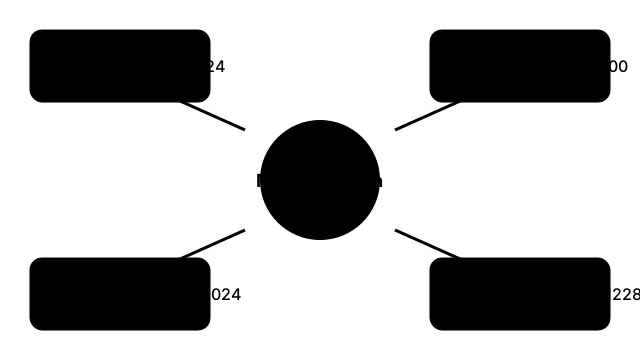
| Advertised MP | Native photo dimensions | Typical browser API output |
|---|---|---|
| 12 MP | 4032 x 3024 | 4032 x 3024 (full sensor) |
| 48 MP | 8000 x 6000 | 4000 x 3000 (4-to-1 pixel binning) |
| 108 MP | 12032 x 9024 | 3008 x 2256 (9-to-1 pixel binning) |
| 200 MP | 16384 x 12288 | 4096 x 3072 (16-to-1 pixel binning) |
Megapixels vs browser camera API resolution on How to check camera quality on your phone: marketing megapixels are not the same as the preview size getUserMedia actually delivers in the browser.
FreetoolOnline editorial teamWhy trust these tools
- Ten-plus years of web tooling. The freetoolonline editorial team has shipped browser-based utilities since 2015. The goal has never changed: get you to a working output fast, without an install.
- No install, no sign-up. Open a tool and get a working output in seconds - nothing to download and no account to create. Tools that need heavy processing run it on our service, so even a low-powered machine gets the job done.
- Analytics stops at the page view. We measure which pages get visited, not what you type or upload inside a tool. There is nothing to sign in to and no profile is attached to your input.
- Open-source core components. The processing engines underneath (libheif, libde265, pdf-lib, terser, clean-css, ffmpeg.wasm, and others) are public and audit-able. We link to each one in its tool page's footer.
- Free, with or without ads. All tools are fully functional without sign-up. The Disable Ads button in the header is always available if you need a distraction-free run.