What an LCD test actually checks
Free Tool Online Editorial TeamLast reviewed: 2026-09-11
An online LCD test - sometimes labelled screen test, display test, or monitor test - is a sequence of full-screen color and pattern fills that reveals defects you can't see in normal use. The test runs in your browser at full resolution; you watch the screen and look for spots that don't match the expected pattern. This guide explains what each check is testing for, what the result means, and when running the test is worth your time.
The four things a real LCD test checks
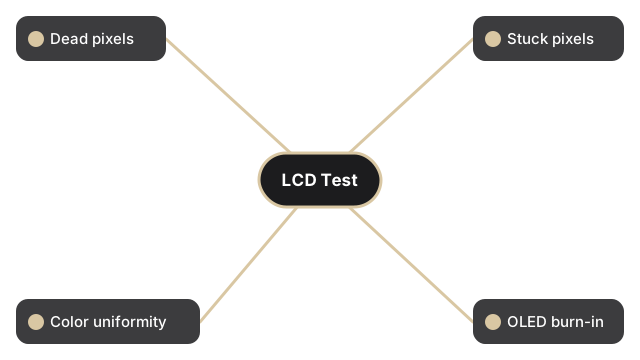
The four things a real LCD test checks on the LCD Test guide are dead pixels, stuck pixels, backlight uniformity, and color/gradient banding - solid full-screen colors make faults pop in seconds.
2. Stuck pixels. A stuck pixel is permanently lit at one color (typically red, green, or blue), regardless of what should be on screen. On the white test it appears as a colored dot; on the matching color test it disappears. Stuck pixels are sometimes recoverable with a "pixel exerciser" - a rapidly cycling pattern that stresses the cell - which the longer LCD-test sequences include. If a stuck pixel survives 30 minutes of the exerciser pattern, it's almost certainly a hardware fault.
3. Color uniformity / banding / dirt. When you look at a perfectly solid red, green, or blue, the entire screen should be uniformly that color. Real-world results: backlight bleed (lighter patches near the edges), VA-panel "vignetting" (corners darker than center), panel dirt or finger oils that show only on solid color. None of these is fatal; uniformity issues are quality-of-display findings rather than warranty triggers (unless the deviation is severe).
4. Burn-in / image retention (OLED only). If the screen is OLED (most newer phones, some monitors, all current Apple Watches and many high-end TVs), repeated long-display of static content can leave a faint ghost. The check is the gray full-screen test - any visible ghost of menus, taskbars, or UI elements is image retention, and persistent retention is burn-in. LCDs technically don't burn in (the backlight is uniform), so on a regular LCD this check is a no-op.
How to run the test in 30 seconds
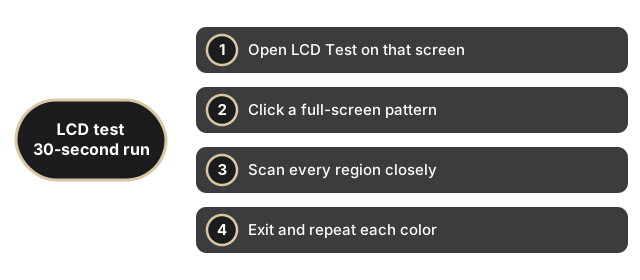
How to run the test in 30 seconds with LCD Test: open the page fullscreen, cycle red/green/blue/black/white, and note any bright or dark dots that stay put.
Step 2. Click the test pattern button (typically labelled with a color or pattern name). The browser fills the entire screen with that pattern.
Step 3. Look closely at every region of the screen. Move your eyes systematically: top-left corner, top edge, top-right corner, right edge, etc. Use a clean cloth to wipe off finger oils first - they look exactly like stuck pixels.
Step 4. Press Esc or click again to exit the full-screen pattern. Repeat for every test the tool offers (white, black, red, green, blue, gray are the standard set).
What the results mean
What the results mean on LCD Test: a single stuck pixel is often cosmetic; clusters, lines, or heavy backlight bleed are reasons to RMA a new panel before the return window closes.

| What you see | What it is | Action |
|---|---|---|
| One or two dark spots only on red/green/blue/white | Dead pixels | Document with a photo of the screen + the test pattern; check warranty's multi-pixel-defect threshold |
| One or two colored dots that disappear on the matching color test | Stuck pixels | Run the pixel-exerciser (cycling pattern) for 30-60 min; if dot persists, document for warranty |
| Lighter patches near edges on a solid black | Backlight bleed | Cosmetic; rarely warranty-eligible unless severe |
| Corners noticeably darker than center on solid color | Panel vignetting (VA panels) | Normal for VA technology; not a defect |
| Faint ghost of menu or UI on gray test (OLED) | Image retention | Run a screen-saver / pixel-shifting pattern to recover; persistent ghost = burn-in |
| Vertical or horizontal lines on any solid color | Panel-driver IC failure | Hardware fault; warranty case |
| Flickering on solid color | Loose cable, failing panel, or bad video card | Try another cable; if it persists, document and inspect |
When to run an LCD test
When to run an LCD test: unbox day, before a warranty claim, after a drop, or when you suspect pressure damage - LCD Test takes less time than arguing with support later.
Before buying a used monitor. The seller may insist the screen is fine; a 30-second LCD test will surface any group of dead pixels, severe backlight bleed, or panel vignetting. Cheaper to run before paying than to deal with a return later.
After unpacking a new screen. Modern panels arrive with strict per-batch QC, but even one-in-a-thousand failures slip through. Within the return-policy window (typically 14-30 days) is the moment to find them.
After dropping a phone. A drop can crack the panel internally without a visible exterior crack; the LCD test reveals dead lines or large dead regions immediately.
After a long stretch of work. Eye fatigue can make stuck or dead pixels fade into the background. Running the test on a fresh start of the day surfaces things you'd otherwise miss.
What an LCD test does NOT check
Be honest about scope - an in-browser test is limited by what JavaScript can paint on a canvas. It does not measure:
Color accuracy - that requires a colorimeter (Spyder, ColorMunki, X-Rite). The test fills with sRGB primaries; it can't tell whether your panel renders them within Delta-E 3.
Brightness uniformity in candela - same reason; needs a luminance meter.
Refresh-rate stability - JavaScript runs at the browser's animation cadence, not the display's actual refresh frequency. Use a tool like testufo.com for refresh-rate-specific tests.
Input lag - requires hardware timing (high-speed camera + reference signal). The browser test runs at the OS's frame cadence, masking display latency.
For everyday "do I have dead pixels, is the panel intact" checks, the in-browser test is the right tool. For pro-grade calibration or competitive-gaming latency tuning, you need dedicated hardware.
Phone screens vs laptop screens vs external monitors
Phone screens vs laptop screens vs external monitors on LCD Test: phones hide edges under glass; laptops show backlight bleed at the bottom; external monitors need a true fullscreen pass without OS chrome.
Phone screens are often OLED (especially on iPhones since X and on most flagship Android since 2018). The OLED-specific burn-in / image-retention check matters here. The phone screen also has rounded corners and notch / cutout regions; dead pixels near the radius are typically not warranty-eligible.
Laptop screens are usually IPS LCD. Backlight bleed at the edges is the most common cosmetic issue; dead-pixel clusters in the central region are the most common warranty trigger. Open the test in full-screen browser mode (F11 on most browsers) so the OS taskbar doesn't cover bottom rows.
External monitors usually have stricter pixel policies. Top-tier brands sometimes offer zero-dead-pixel guarantees; budget-line panels often allow up to 5 dead pixels before warranty engages. Check the brand's exact pixel policy before submitting an RMA.
Quick recap
Quick recap for LCD Test: fullscreen solid colors catch dead and stuck pixels fast; save screenshots of faults before you contact the seller.
Dead-pixel warranty thresholds by panel type
How many dead pixels a warranty tolerates before it engages varies by panel type and brand. This table summarises the common thresholds to know before filing a return; always confirm your brand's exact pixel policy since the numbers vary.
| Panel type | Dead pixels tolerated | Suggested test duration |
|---|---|---|
| Premium external monitor (zero-pixel guarantee) | 0 pixels | 5 min full cycle |
| Budget-line external monitor | up to 5 pixels | 5 min full cycle |
| Laptop IPS screen | 3 to 5 edge pixels | 3 min with pixel exerciser |
| Phone OLED screen | 0 to 2 pixels (outside corner radius) | 30 min for image retention |
Frequently Asked Questions
Can an in-browser LCD test detect the same faults as a desktop app?
Yes for dead pixels and backlight bleed, with two conditions: the browser must be in full-screen mode (press F11) and must respect the panel's native colour space. For response-time measurement and colour calibration, an installed app with a hardware colorimeter is more accurate because it measures the panel directly.
How long should I run the test to recover a stuck pixel?
Stuck pixels sometimes recover with a "pixel exerciser" pattern that flashes colours rapidly. Run that pattern for 30 to 60 minutes. If the stuck pixel survives 30 minutes of the exerciser, it is almost certainly a hardware fault and worth a warranty claim.
Does the LCD test upload any image of my screen?
No. The test is only full-screen solid colours driven by a few CSS rules. The page does not access your camera, microphone, or clipboard, and it does not store or transmit any image of what is on your screen. Closing the tab ends the session.
What are the three resolution numbers the LCD Test page shows?
LCD Test reads out three numbers: the viewport size (the visible page area inside the browser chrome), the OS-reported screen resolution, and the native resolution (the OS-reported figure multiplied by devicePixelRatio). The native number is the one that matters for hi-DPI panels - a stuck sub-pixel can fall between the physical pixels the OS composites into one reported pixel, so it can look clean on a solid black or white field to the naked eye even though the native readout confirms the panel has more physical pixels than the OS number suggests.
Why does the fullscreen checkbox disappear on some screens?
The "Test in full screen mode" checkbox auto-checks itself on screens 821 pixels wide or larger and hides on narrower screens, because true fullscreen (via the browser's requestFullscreen API) needs more width to be worth the mode switch on a small phone display. With the box checked, the color fill enters real fullscreen and hides the browser chrome; unchecked, it paints the page background instead, which is the practical option on a narrow window where fullscreen would just add a mode-switch step.
Related tools and guides
- LCD Test - the tool this guide walks through.
- Camera Test - test your webcam or phone camera in the browser.
- Microphone Test - check input level and noise floor.
- Keyboard Test - verify N-key rollover and stuck keys.
- Device Test Tools - the full hub of device-test pages.
- Dead-pixel testing guide - companion guide focused on dead-pixel policy specifics.
- Device-test checklist for remote work - pre-meeting 60-second sequence.
- LCD checker - the verification framing of this same test: use it before accepting a delivery, finalizing a warranty claim, or returning a used monitor.
Why trust these tools
- Ten-plus years of web tooling. The freetoolonline editorial team has shipped browser-based utilities since 2015. The goal has never changed: get you to a working output fast, without an install.
- No install, no sign-up. Open a tool and get a working output in seconds - nothing to download and no account to create. Tools that need heavy processing run it on our service, so even a low-powered machine gets the job done.
- Analytics stops at the page view. We measure which pages get visited, not what you type or upload inside a tool. There is nothing to sign in to and no profile is attached to your input.
- Open-source core components. The processing engines underneath (libheif, libde265, pdf-lib, terser, clean-css, ffmpeg.wasm, and others) are public and audit-able. We link to each one in its tool page's footer.
- Free, with or without ads. All tools are fully functional without sign-up. The Disable Ads button in the header is always available if you need a distraction-free run.
What users say about this tool
A super fast tool to verify dead pixels on any monitor or screen, including tablets and mobile devices. I use it often without errors.