Screen test online vs app: which is more accurate, and when each one wins
A browser-based screen test finds dead pixels, stuck pixels, backlight bleed, and color uniformity - the four panel defects visible on a solid color. A native app is needed only for refresh-rate, HDR, and color-profile signals the browser cannot read.
Last reviewed: 2026-06-29
What a browser screen test can do
A browser screen test paints fullscreen solid colors and gradients so dead pixels, stuck pixels, and obvious banding show up in about 30 seconds. On HiDPI and Retina displays with 2x or 3x scaling, the DPR readout at the bottom of the test shows the physical pixel density - the fullscreen sweep runs at native resolution, so a sub-pixel defect smaller than one CSS pixel is still visible against the solid field.
The browser-based dead pixel test on this site uses six diagnostic colors (red, green, blue, white, black, yellow). Dead pixels show on every color. Stuck pixels show on the colors that are NOT the one the subpixel is locked to (a stuck-red pixel is invisible on red and visible on green/blue/black). Backlight bleed shows on black; gradient drift shows on white. Two minutes per panel, no install.
Where the in-browser path stops: signals it is not allowed to read
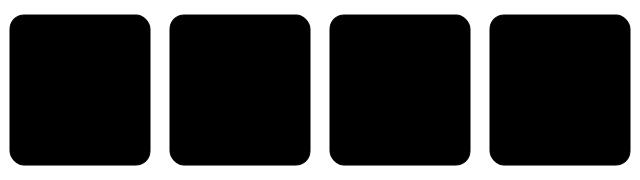
The browser deliberately abstracts away several display signals so a web page cannot fingerprint the user's hardware. That abstraction is also why a browser screen test does not see them.
- Refresh-rate ramps. The browser cannot reliably tell you whether the panel is running at 60 Hz, 120 Hz, or 144 Hz, and cannot ramp through them to find a flicker threshold. A native app talks to the GPU driver directly and can change refresh rate, then watch for picture loss or flicker.
- 10-bit / HDR signal. Most browsers render to an 8-bit-per-channel canvas even on a 10-bit panel; HDR transfer functions (PQ, HLG) are not exposed to standard CSS. A native app can request a 10-bit / HDR surface from the OS and validate banding or peak luminance.
- ICC color profile probing. The browser respects the OS color profile silently; it does not let a page measure or override it. A calibration app reads the profile, applies test patches at known XYZ values, and reports delta-E.
- Response time / pixel-overdrive ghosting. Detecting a 1-3 ms ghost trail requires a high-speed measurement, not a static color screen.
- Direct port / cable diagnostics. The browser cannot tell you if the picture is reaching the panel via HDMI 2.0 vs HDMI 2.1; the cable / EDID layer is below the abstraction.
What a native screen-test app adds
What a native screen-test app adds beyond Screen Test in the browser is deeper panel diagnostics some OS APIs expose - useful after a warranty claim, not required for a quick dead-pixel pass.
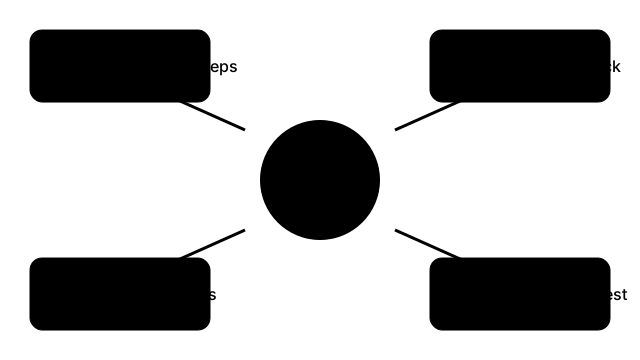
A native app installed from a vendor or platform store talks to the OS display driver, the color management stack, and (for color-critical work) a hardware colorimeter. That privileged access lets it observe what a browser cannot.
- Refresh-rate sweeps across every mode the GPU driver advertises.
- 10-bit and HDR validation with on-screen test patterns and (with a colorimeter) measured peak nits and HDR EOTF accuracy.
- Color profile creation and validation - apply a known test patch, measure with a colorimeter, write a corrected ICC profile.
- Response-time / overshoot reporting via vendor-provided patterns and measurement tools.
- Vendor-specific hardware tests - a monitor's OSD self-test, a laptop's panel-info readout, GPU stress patterns from the GPU vendor.
The 30-second decision tree
The 30-second decision tree for Screen test online vs app: start with the browser Screen Test; only install a native app if you still need hardware-level readouts the browser cannot reach.
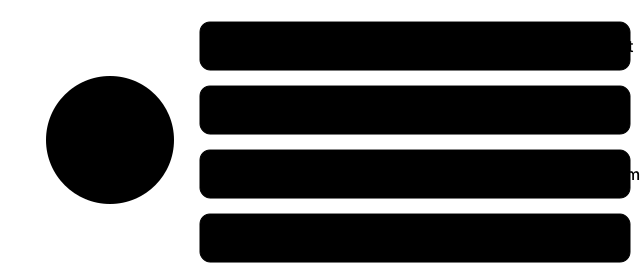
Match the symptom to the test that catches it - run the cheaper one first.
- Visible defect on a solid color (dead spot, bright stuck dot, color patch, corner glow) → open the browser screen test first. Two minutes, no install. If it confirms the defect, you have your evidence; the panel needs an RMA. To capture the defect for warranty documentation, the in-browser screen recorder records the full-screen test without a desktop app.
- Symptom about flicker or refresh rate ("the screen looks juddery", "the cursor leaves trails", "I cannot tell if 120 Hz is actually engaging") → install a native app. The browser cannot ramp refresh rate; you need direct GPU-driver access.
- Symptom about HDR or color accuracy ("HDR videos look flat", "the photo I edited prints darker", "skin tones look red on this monitor only") → native app, ideally with a colorimeter. The browser cannot measure 10-bit or HDR signals.
- Symptom about a port or the OSD ("USB-C port is dead", "OSD button does not respond") → neither online nor app screen tests catch this. Test the port manually and read the LCD test vs display test vs monitor test guide for the right escalation path.
- Not sure where to start → browser screen test. It is the cheapest, fastest, and rules out the most expensive failure (a panel return) before any install or measurement.
Accuracy comparison: same panel, same defect
For panel-level defects (dead, stuck, uniformity, bleed), online and native are equally accurate. The diagnostic surface is the panel itself - the browser fills it the same way a native app fills it, and the human eye is the measurement instrument either way. Vendor "screen test" apps for laptops and monitors run the same red/green/blue/white/black sweep the browser version does; the marketing differs, the patterns are identical.
For deeper signals (refresh, HDR, color profile), the native app is more accurate by definition - it has access to signals the browser cannot read. A browser screen test that tries to claim 144 Hz validation is selling something it cannot deliver.
Browser test vs native app: what each signal requires
Browser test vs native app: what each signal requires on this compare page - dead and stuck pixels need only fullscreen colors in Screen Test; panel voltage and EDID-style data need a native app.
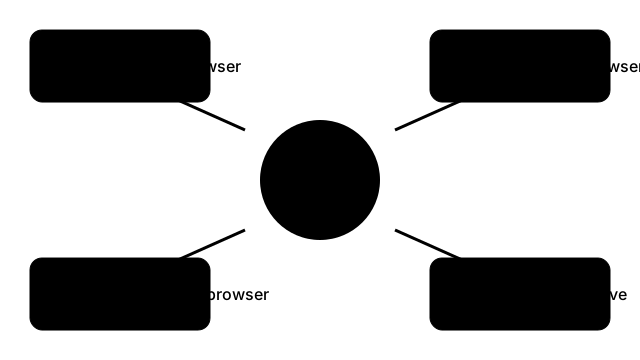
Match the symptom to the right tool. Run the cheaper option first.
| Signal to check | Browser test | Native app | Time (minutes) |
|---|---|---|---|
| Dead pixels | Yes | Yes | 2 |
| Stuck pixels | Yes | Yes | 2 |
| Backlight bleed | Yes (black slide) | Yes | 2 |
| Refresh rate (60-240 Hz) | No | Yes | 5 |
| 10-bit / HDR signal | No (8-bit canvas) | Yes | 10 |
| ICC color accuracy | No | Yes + colorimeter | 15-30 |
Related
- LCD / Dead Pixel Test - the in-browser full-screen color sweep referenced throughout this guide.
- LCD test vs display test vs monitor test - which of the three diagnostic scopes matches your symptom.
- What an LCD test actually checks - per-pattern walkthrough of the panel-level diagnostic.
- Dead pixel testing guide - dead vs stuck vs uniformity defect taxonomy.
- How to test for dead pixels before returning a monitor - warranty-evidence workflow.
- Device test checklist for remote work - broader screen + camera + microphone + keyboard cadence.
- Screen Recorder - record the full-screen test in-browser for warranty evidence.
- Screen test for laptop - 5 minute checklist - quick panel check before buying or returning.
- Screen display test synonyms - which search terms map to the same panel diagnostic.
Why trust these tools
- Ten-plus years of web tooling. The freetoolonline editorial team has shipped browser-based utilities since 2015. The goal has never changed: get you to a working output fast, without an install.
- No install, no sign-up. Open a tool and get a working output in seconds - nothing to download and no account to create. Tools that need heavy processing run it on our service, so even a low-powered machine gets the job done.
- Analytics stops at the page view. We measure which pages get visited, not what you type or upload inside a tool. There is nothing to sign in to and no profile is attached to your input.
- Open-source core components. The processing engines underneath (libheif, libde265, pdf-lib, terser, clean-css, ffmpeg.wasm, and others) are public and audit-able. We link to each one in its tool page's footer.
- Free, with or without ads. All tools are fully functional without sign-up. The Disable Ads button in the header is always available if you need a distraction-free run.
What users say about this tool
A super fast tool to verify dead pixels on any monitor or screen, including tablets and mobile devices. I use it often without errors.