
Device Test Tools
Use these device test tools to check common hardware inputs and displays in your browser. Each test opens on its own page below and runs live with nothing to install and no account, so you can confirm the one part you are unsure about and move on.
-
 Microphone Test Online - Live Spectrum Meter & Permission Check
Free microphone test online: live spectrum meter, mic permission check, and optional speaker loopback in your browser.
-
 Camera Test Online - Live Preview, Resolution & Capture
Check or test your camera online: live preview, resolution readout, switch front and back camera, capture and download a JPEG photo - all in your browser.
-
 LCD / Monitor / Display Test - Dead Pixel Check
Screen test, display test, monitor test, dead pixel test - one page covers all four.
-
 Keyboard Test - Press Keys, Spot Dead Keys
Press each key - the on-screen layout highlights it.
-
 Screen Recorder - Record Screen, Camera or Mic in Browser
Record your screen, camera, or microphone in the browser, blur faces while recording, and download the clip as WebM or convert it to MP4 - no upload.
-
 GPU Test - WebGL Benchmark & Info - Free Online
GPU Test - WebGL Benchmark & Info - See what your browser's graphics stack can do - WebGL 1 and 2 availability, the renderer name your browser reports, tex...
-
 Speaker & Audio Channel Test - Free Online
Test left and right speaker channels with a short in-browser tone.
-
 Mouse Test (Buttons & Scroll) - Free Online
Mouse Test (Buttons & Scroll) - Check left, middle, and right buttons, pointer coordinates, and scroll wheel in the browser.
-
 Gamepad / Controller Test - Free Online
Gamepad / Controller Test - Check controller buttons and stick axes in the browser.
-
 Touchscreen Test - Free Online
Touchscreen Test - Check single and multi-touch contacts on a local pad in the browser.
-
 Monitor Refresh Rate Test (Hz) - Free Online
Monitor Refresh Rate Test (Hz) - Measure display refresh rate in the browser, including adaptive ProMotion and variable-refresh panels.
If you already know which part is acting up, route by the signal you need to confirm and skip the rest of the hub: a video preview that should show a live image points to the Camera Test, audio input the browser may be muting points to the Microphone Test, key registration after a spill or a repair points to the Keyboard Test, and a stuck pixel or patch of uneven backlight points to the LCD Test.
Check your hardware before it matters
Run these checks before they matter - a camera and microphone test before a remote interview, not during it - and you find the problem while there is still time to fix it.
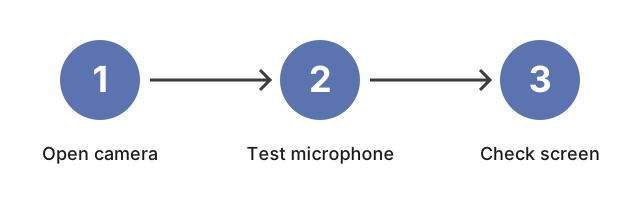
A Windows update or a driver upgrade can quietly break a device that worked the day before: the update sometimes resets the default microphone or camera, or revokes the browser permission the test depends on. After any major system update, open the test for the input you rely on and confirm the signal is back - catching a reset device early beats discovering it the moment someone joins the call.
For a step-by-step walkthrough of the screen check on its own, read the LCD Screen Test guide.
Tips for accurate results
Speak at a normal volume for audio checks, and press each key once to confirm it registers. Screen checks work best at full brightness; if you find a hardware issue, try a different USB port or device to isolate the problem. These tools do not store recordings - they are live tests only.
Quick comparison

| Tool | Best for | What you verify | Common fix |
|---|---|---|---|
| Camera Test | Webcam preview | Video signal + device selection | Allow permission / switch camera |
| Microphone Test | Audio readiness | Input levels + mic selection | Select correct mic / unmute |
| Keyboard Test | Key checker | Key presses + special keys | Toggle Num Lock / clean key |
| LCD Test | Screen check | Stuck pixels + color uniformity | Increase brightness / full-screen |
Troubleshooting checklist
A device that shows no signal is far more often a permission state than a hardware fault. Work through these five layers top-to-bottom.
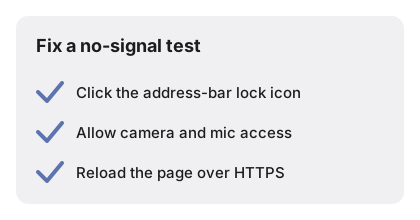
- Browser permission. These tools use the
getUserMediaandPermissionsAPIs. Click the camera/microphone icon in the address bar and re-grant access; on Chrome, Site settings → Camera / Microphone must be set to Allow forfreetoolonline.com. - Secure origin. Modern browsers only expose camera, mic, and sensor APIs over HTTPS. If you opened the page over plain HTTP, reload with
https://. - OS-level privacy. macOS: System Settings → Privacy & Security → Camera / Microphone and enable your browser. Windows: Settings → Privacy & security → Camera & Microphone. Linux: ensure
pipewireorpulseaudiois running and the user has device access. - Device in use elsewhere. Quit other apps that may hold the webcam or mic (Zoom, Teams, OBS). On Windows the Camera app often keeps an exclusive lock.
- Mobile sensor quirks. iOS Safari requires a user gesture (a tap) before the first sensor read, and it blocks motion sensors when the page is inside a cross-origin iframe. Android Chrome needs the page added to the home screen for some hardware-backed flags.
Scope disclosure. A browser-based test reflects what the browser can see through Web APIs. If every browser on the machine reports a failure, the fault is usually the hardware, driver, or OS permission layer - follow up with your OS's own diagnostic tool.
Browser-based camera test - no install required
Click Start Camera and a live preview appears once the browser receives permission. The test surfaces the three failures that derail most calls before they begin: another app holding the device handle, a stale browser permission deny, or the wrong camera selected from the OS list.
Keyboard not responding - test each key
Open the keyboard checker, press every key once, and watch which codes register - a dead key after a spill or a hinge repair shows up as the one key on the on-screen layout that never lights up.
Pair device tests with media-production tools
These tests sit upstream of any recording or video-call workflow. Once camera and mic check out and you are about to capture clips, you may also need to convert a video file between codecs your editor expects, extract GIF frames for thumbnail-quality stills, or prepare HEIC photos from your phone for tools that still reject the iPhone-default format - all in the image converter hub and video tools hub. To share the captured material after the call, the zip tools hub bundles folders into a single archive. Developers checking the browser APIs behind these tests can cross-reference the developer tools hub for JSON parsing, CSS/JS minification, and MD5 conversion.
Want a broader check? The site map covers every device test plus related guides, including the remote-work checklist.
Laptop, phone, and shared-machine checks
The laptop's built-in webcam is the piece most laptop owners check first - before a video call, or before a return window closes on a new machine. If the built-in lens stays black in the camera test, switch to an external USB camera from the device list before assuming the laptop's webcam itself is dead.
A phone or smart-TV display can be checked the same way: open the full-screen color test directly in that device's own browser and step through the red, green, blue, black, and white frames to spot a dead or stuck pixel before you commit to keeping a new phone or television.
Last reviewed: 2026-10-01
Free Tool Online Editorial TeamWhy trust these tools
- Ten-plus years of web tooling. The freetoolonline editorial team has shipped browser-based utilities since 2015. The goal has never changed: get you to a working output fast, without an install.
- No install, no sign-up. Open a tool and get a working output in seconds - nothing to download and no account to create. Tools that need heavy processing run it on our service, so even a low-powered machine gets the job done.
- Analytics stops at the page view. We measure which pages get visited, not what you type or upload inside a tool. There is nothing to sign in to and no profile is attached to your input.
- Open-source core components. The processing engines underneath (libheif, libde265, pdf-lib, terser, clean-css, ffmpeg.wasm, and others) are public and audit-able. We link to each one in its tool page's footer.
- Free, with or without ads. All tools are fully functional without sign-up. The Disable Ads button in the header is always available if you need a distraction-free run.
Frequently Asked Questions
Which device test should I run before joining a video call?
Run Camera Test and Microphone Test in that order. The camera test confirms the right webcam is selected and shows a live preview; the microphone test verifies input levels and the correct mic is routed. Both run in under a minute.
The tool shows no signal - what's wrong?
Nine times out of ten, it is a permission issue. Click the camera or microphone icon in the address bar and re-allow access for freetoolonline.com. Then confirm your OS (macOS System Settings → Privacy, Windows Settings → Camera/Microphone) has granted your browser access.
Are recordings stored anywhere?
No. These tests run in your browser only. Nothing is uploaded, nothing is recorded, and the live preview ends the moment you close the tab.
Do these tests work on a phone or tablet?
Mostly yes - the camera, microphone, and screen tests work in mobile Chrome and Safari over HTTPS. A few sensor APIs (accelerometer, orientation) need a user gesture first on iOS, and some Android devices hide extra cameras from the browser. Desktop remains the most reliable environment.
What if every browser fails the same test?
When Chrome, Firefox, and Safari all fail the same sensor, the fault is usually the hardware, driver, or OS permission layer - not the browser. Try the OS's built-in camera or sound-settings diagnostic before assuming the hardware is broken.