
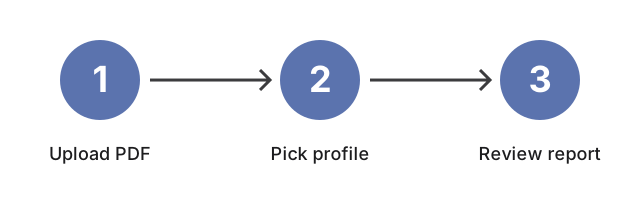
Uploaded successfully, choose the format type validation that you want and click the 'PreFlight' button to start
Preflight reads an existing PDF and reports pass or fail against the trim you pick - it does not resize the document or write a new file. Select Dimension above to enable this list, then pick the target trim. For the canonical trim catalog and how Preflight differs from Images to PDF, see the page-size catalog on the PDF hub.
The PreFlight process has completed.
Preflight PDF Files Online for Format Compliance
freetoolonline.com editorial teamPreflight PDF online checks whether a PDF meets the PDF/A-1B (visual) or PDF/A-1A (visual plus tagged) archival standard and returns one pass/fail line per page per checked property - missing font embeds, transparency, encryption, embedded JavaScript, or multimedia attachments. It is a read-only validator: nothing is rewritten and no new file is produced. No software install.
Archives and repositories that cite ISO 19005 typically expect a matching PDF/A pass before acceptance, so pick the profile your destination requires. Then use Dimension mode to pick the trim size this document is supposed to match: the dropdown above the picker carries every preset the validator knows about - trade-book, photo-book, and magazine presets alongside standard sizes like A4 and US Letter - so a document set to the wrong dimensions surfaces here instead of at the print shop. The PDF tools hub lists each preset with its pixel dimensions and print-shop context. One upload then answers both the geometry question and the archival-compliance question.
When to run preflight
Run preflight before sending a file to a print shop, submitting to an archival repository, or uploading to a compliance-mandated channel - and before each revision cycle, re-export the source and run the check again. Uploads travel over HTTPS; files are removed from the service immediately after the validation report is generated.
Found an issue to fix? The fix itself happens in the source application - InDesign font embedding, Word font policy, an image-resolution upscale - before you re-export and re-preflight. Pair preflight with flatten PDF to lock layers and annotations, split PDF by range when you need to isolate a problem page, or open the PDF tools hub for the full merge, compress, and protect set. PDF/A-2, PDF/X, and PDF/UA are out of scope here.
Preflight versus Images to PDF
The dimension dropdown above is shared with Images to PDF; the difference between the two tools is direction of fit. Preflight expects an existing PDF as input and reports whether its trim size already matches the chosen dimension. Images to PDF accepts JPG and PNG uploads and writes a fresh PDF at the chosen dimension, with no validation. Pick this page when the document already exists; pick the other page when it does not yet exist.
Preflight reads four signals out of the uploaded PDF that Images to PDF never touches:
- Embedded font dictionary - PDF/A-1B requires every font subsetted into the file.
- Tag tree - PDF/A-1A requires a structured tag tree with reading order, alt text on figures, and table-cell scoping.
- Colour-profile metadata - ICC tags on every device-colour image.
- Trim-box geometry - checked against the dropdown's selected dimension.
Images to PDF writes those same four properties on a brand-new file from defaults the converter picks - so the natural order for a print-shop-bound document is Compose or Images-to-PDF first, then Preflight as the last step before the file goes to the printer.
Inside the Preflight report
PDF/A-1A adds the tagged-PDF structural checks on top of the PDF/A-1B set, as the counts below show. A file that passes PDF/A-1B but fails PDF/A-1A has correct visual output but no structured reading order: the print shop will accept it, a screen-reader-mandated archive (some legal, government, and accessibility-bound channels) will reject it, because assistive tools read the document through that structure. A clean document comes back as "no errors found"; anything else arrives as a numbered list you can work through one line at a time.
| PDF/A profile | Checks per 10-page doc | Tag tree / alt text |
|---|---|---|
| PDF/A-1B | 40 items | Not required |
| PDF/A-1A | 50 items | Required (reading order + alt text) |
Check the page count before you run Preflight
When your PDF finishes uploading, the second panel fills in with the document's page count before you run anything - useful when several drafts of the same document are open at once. That number is the fastest way to catch the wrong file: a 12-page booklet that reads as 1 page usually means you grabbed a cover export instead of the full interior, and a count that is double what you expected points to a spreads-versus-single-pages mix-up in the export step. Confirm the count matches the revision you meant to send, then press Preflight.
What to fix when a preflight line fails
Each failing line names one page and one property, so the repair is targeted rather than a blind retry. All five properties this validator reports are fixed in the application that made the PDF, then you re-export and preflight again to confirm the line clears:
- Missing font embed - turn on font embedding (subset) in the export dialog of Word, InDesign, or your PDF printer so every glyph travels inside the file.
- Transparency - flatten transparency on export, or rasterise the affected layer, because PDF/A-1 does not permit live transparency.
- Encryption - remove the open or permissions password before export; an archival PDF must open without a key.
- Embedded JavaScript - delete document-level scripts, often left behind by a form template, and re-export a static copy.
- Multimedia attachment - remove embedded audio, video, or 3D objects, or keep them as separate files alongside the PDF.
Frequently Asked Questions
What is PDF/A format and why does it matter?
PDF/A is a standardized version of the PDF format designed for long-term archiving. It ensures the file will look the same regardless of what software or hardware is used to view it in the future. PDF/A compliance is crucial for industries like legal, medical, and government where documents need to be preserved accurately for many years.
What does the preflight check actually scan for?
It reads the contents of your PDF and tests them against the criteria of the profile you selected, flagging problems such as fonts that were never embedded, low-resolution images, and incorrect colour profiles. The criteria differ by profile, so the same document can pass PDF/A-1B and fail PDF/A-1A. You upload the file through your browser and the check itself runs on the server, so there is nothing to install on a desktop, laptop, or tablet.
Which PDF/A profile should I pick for legal or government documents?
For most legal and records-retention work, PDF/A-1B is the safest baseline - it requires every visual element used to be embedded in the file (fonts, colour profiles, images), so the document will look identical on any future viewer. PDF/A-1A adds tagged-PDF accessibility on top, which is required for documents that must be screen-reader friendly. Those two profiles are what this validator checks; if your archive policy specifically calls for transparency, layers, or JPEG2000 compression, it is asking for PDF/A-2 or later and you will need a validator that covers those.
What does a preflight error mean for the print run?
An error means at least one element will likely render differently from your screen view at the printer (missing font substituted, low-resolution image upscaled, RGB element mapped into CMYK with shifted colour). Warnings are softer - the file will still print, but you may see degraded quality. Fix errors before sending to a print shop; warnings are a judgment call based on the job. Catching either one here is what keeps a run from being reprinted or a submission from being rejected.
Can I fix the issues directly in this tool, or do I need to re-export the source?
The preflight check identifies non-compliance but does not edit the PDF in place, and it does not hand back a corrected copy. Most fixes happen in the source application (embedding fonts in InDesign / Word / LaTeX, replacing low-resolution images, switching the export colour space). Re-export the corrected source to PDF, then run preflight again here to confirm the file passes.