Chat With a PDF in Your Browser - Step by Step
freetoolonline.com Editorial TeamOne full run of Chat with PDF goes: open a file, ask a question in plain language, read the passages it cites, then decide whether a model should draft written answers. Nothing is uploaded at any step - the document is parsed and searched on your own device from start to finish.
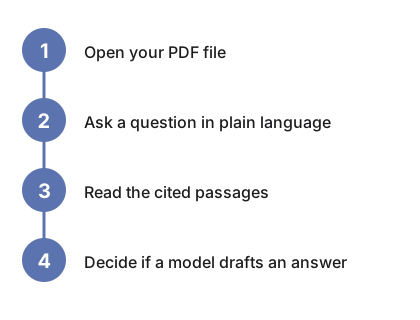
What is on the page before you start
The page loads already showing a finished result: a built-in three-page sample manual is indexed, a sample question sits pre-filled in the input, and the matching passages for it - page numbers included - are on screen with zero interaction and zero download. That sample run is labeled as such, and it is the fastest way to see the output shape before opening a file of your own.
Step 1 - Open your PDF
Pick the file with the file button. It is read and split into passages in the browser - never uploaded - and very long documents are read up to the first 300 pages, a limit the tool states up front. If the file looks scanned, the page says so immediately: a scanned or photographed PDF has no text layer, so there is nothing to search until you run OCR on it first.
Step 2 - Ask a question in plain language
Type the question the way you would ask a colleague and press Ask. The answer turn shows the most relevant passages, each with its page number. With no model loaded you get the passages themselves plus an honest note that a model would add a written answer - the page never substitutes a canned reply for a question of yours.
Step 3 - Read the passages before trusting any answer
When a model is active, its written answer is drafted over those same passages, and the passages stay attached to the turn. The intended reading order is evidence first: confirm the cited page says what the draft claims, because a small on-device model is a solid first read and not a professional analyst. A status line under the conversation names which engine produced the latest answer and which matching method ran, so there is never a doubt about what you are reading.
Optional - upgrade the search, add written answers, or both
Two upgrades are offered, each behind its own explicit click with its own progress bar. The matching upgrade is a model of about 25 MB that switches passage search from keyword overlap to matching by meaning. The answering upgrade loads a small language model through a picker whose sizes are read from the model list and shown before the download starts; where the browser ships built-in AI, written answers cost no download at all. Neither upgrade is required - the passage matching keeps working without them.
| Answer path | Download before first use | Later visits |
|---|---|---|
| Passage matching | None | Instant |
| Matching by meaning | About 25 MB, once | Cached by the browser |
| Written answers, on-device model | Size shown before the download starts | Weights cached; the last model is remembered |
| Written answers, built-in browser AI | None | Available where the browser ships it |
The language-model cache is shared with the Private AI Chat page, so a model downloaded there is instantly available here and the other way round.
If the result looks wrong
Three checks cover most cases. If every question returns nothing, look for the scanned-file warning - a PDF without a text layer has nothing to match, and OCR is the fix. If the passages are off-topic, reword the question: up to four excerpts are used per question, and different wording surfaces different passages, especially in keyword mode. And if an answer reads oddly confident, read its cited pages - the draft is only as good as the passages under it, and the page keeps them one glance away on purpose.
Starting a second document
The page works on one document at a time. Opening a new PDF clears the transcript and indexes the new file, and nothing from the previous session is kept - documents, questions and answers are not stored beyond the page session on any path.
Where to go next
To decide whether this page fits a sensitive document in the first place, see Chat With a PDF Without Uploading It - When To Use It. To compare it with cloud PDF chat services and plain text extraction, see Private PDF Chat vs Cloud PDF Chat Services.
Why trust these tools
- Ten-plus years of web tooling. The freetoolonline editorial team has shipped browser-based utilities since 2015. The goal has never changed: get you to a working output fast, without an install.
- No install, no sign-up. Open a tool and get a working output in seconds - nothing to download and no account to create. Tools that need heavy processing run it on our service, so even a low-powered machine gets the job done.
- Analytics stops at the page view. We measure which pages get visited, not what you type or upload inside a tool. There is nothing to sign in to and no profile is attached to your input.
- Open-source core components. The processing engines underneath (libheif, libde265, pdf-lib, terser, clean-css, ffmpeg.wasm, and others) are public and audit-able. We link to each one in its tool page's footer.
- Free, with or without ads. All tools are fully functional without sign-up. The Disable Ads button in the header is always available if you need a distraction-free run.