Compress PDF Online Free
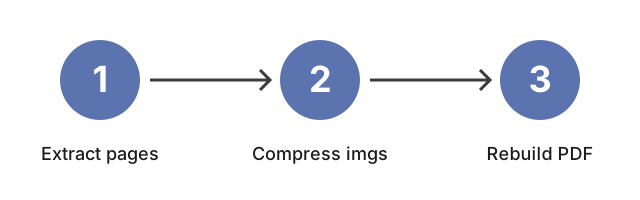
Shrinking a PDF for free comes down to what is making it big. Flatten a form-heavy or annotated PDF to drop layer overhead; for scanned, image-heavy files, extract each page as an image, compress those images, then rebuild the document from them. Every step is free, runs online, and needs no account or install.
Last reviewed: 2026-06-11
| Property | Value |
|---|---|
| Format | Online, no install, no account |
| Cost | Free |
| Best for | Scanned / image-heavy PDFs |
| Typical saving | Varies - largest on scanned or image-heavy PDFs |
Two free routes cover most oversized PDFs. First, flatten: many PDFs carry form fields, annotations, and stacked layers that inflate the file, and flattening merges them into the page content - often trimming size with no visible change. Use the flatten PDF tool for that. Second, for scans and photo-heavy documents (the usual reason a PDF balloons), extract each page as an image, compress those images, then rebuild the PDF. That rebuild turns selectable text into a flat picture, so keep the original if you still need to copy text. Not sure which case you have? Inspect the file first.
Frequently Asked Questions
Will compressing reduce the quality of my PDF?
Flattening alone leaves the visible content unchanged, so quality holds. The image route is different: rebuilding the document from compressed page images makes the text a flat picture, so it looks slightly softer and is no longer selectable. Keep the original when you still need to edit or copy the text.
Is it free, and do I need an account?
Yes - every step runs as a free online tool in the PDF toolkit, with no account and no install. You open the tool, choose your file, and download the result.
Why did my PDF barely get smaller?
Flattening helps form-heavy, annotated, or layered files the most. A PDF that is mostly plain text is already compact, so there is little to trim. The large savings come from scanned or photo-heavy documents, where downsampling the page images is what shrinks the file.
Does my file get processed in the browser, or uploaded to a server?
These are free online tools, not a private in-browser converter: the work happens on a server. You upload the file, the tool flattens, compresses, or rebuilds it, and the smaller copy comes back to download once it is ready. If the document is confidential, keep the untouched original on your own device, since the rebuilt copy is the one that travelled to the server and back.
Related
- Resize image online free - for scanned PDFs, reducing page-image pixel dimensions before rebuilding often cuts more bytes than quality compression alone.
- Compress image to 50 KB - set a specific file-size ceiling on each page image before rebuilding the PDF from them.