How to Fill Out a PDF Form Online - No Upload
Use PDF Form Filler to fill in an existing PDF's form fields entirely in your browser, then download the completed file. The tool reads the PDF locally, lists every field it finds, and lets you type or pick new values before saving - no upload, no account.
freetoolonline.com editorial team| No. | PDF field type | Rendered control |
|---|---|---|
| 1 | Text field | Text input, pre-filled with the field's current value |
| 2 | Checkbox | Checkbox, pre-checked from the field's current state |
| 3 | Dropdown | Select list, pre-selected from the field's current value |
| 4 | Radio group | Select list built from the group's options |
| 5 | Multi-select (option list) | Select list built from the field's available options |
What "fillable" means for a PDF
What "fillable" means for a PDF in PDF Filler Form Editor: a fillable PDF carries an AcroForm of named fields on top of the static page, and each field type (text, checkbox, dropdown) is what this browser tool reads and writes without uploading the file.
PDF Form Filler works by reading a chosen file's AcroForm dictionary with the pdf-lib library, entirely inside the browser tab. It never sends the file to a server. If the dictionary is empty, the tool tells you plainly instead of pretending to have filled something - it fills fields that already exist and does not add new ones to a flat or scanned page.
Step by step
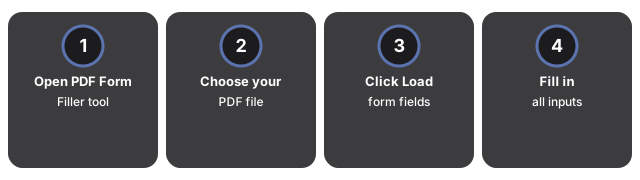
- Open the tool. Go to PDF Form Filler.
- Choose your PDF. Use the file picker to select a PDF that already has form fields - one you downloaded from an agency, an employer, or a template site, for example.
- Click Load form fields. The tool reads the file in your browser and lists every field it recognises, each pre-filled with whatever value it currently holds.
- Fill in the inputs. Type into the text boxes, tick the checkboxes, and pick the dropdown or radio options that apply. Each control keeps the field's original name as its label, so you can match it against the printed form if you are unsure.
- Click Fill & download PDF. Your answers are written back into the same fields, and the completed file downloads immediately as a normal PDF.
- Keep the download. Nothing you typed is saved on the page - reload the tab and the values are gone. Reopen the downloaded file itself to keep working from where you left off.
When a field is not recognised
PDF Form Filler supports the five field types in the table above, which cover the large majority of AcroForm-based templates. A field type outside that set still appears in the list, shown as a disabled input with a note that it is unsupported and has been left unchanged - so a form with one unusual field does not block filling in the rest, and nothing gets silently skipped or corrupted.
What this tool does not do
What this tool does not do: PDF Filler Form Editor is a browser form-fill tool that does not OCR a flat scan into fields, does not flatten digitally signed PDFs into editable forms, and does not replace a full desktop PDF suite for page reorder or heavy markup.
- Adding fields to a flat or scanned PDF. PDF Form Filler fills fields that already exist. It does not run OCR to detect blank boxes on a scanned page and does not turn a flat PDF into a fillable one. If you need to design a new fillable template, that step happens in PDF-authoring software before the file reaches this tool.
- Locking the filled values permanently. Filling a field here does not flatten the form - the downloaded PDF still has live, editable fields, so anyone who opens it afterward (including you) can change the values again in other PDF software. If a workflow needs the filled values baked in as static page content so they cannot be changed further, run the result through Flatten PDF after filling.
- Restructuring the file. Splitting a PDF, joining several PDFs, converting pages to images, or removing a password are separate jobs handled by the other tools on the PDF tools hub - PDF Form Filler only reads and writes form-field values.
Why the no-upload part matters
A filled-in form often carries a name, an address, an account number, or other personal details - exactly the kind of content you would rather not send to a server you do not control. Because PDF Form Filler runs the read, fill, and save steps with pdf-lib inside your own browser tab, the file and the values you type stay on your device the entire time; there is no upload request to inspect and no account to create.
Does PDF Form Filler upload my file to a server?
No. The file is read in your browser with pdf-lib and never leaves the tab; the filled PDF is generated and downloaded locally as well.
Can I still edit the form after I download the filled PDF?
Yes. Filling a field does not flatten it - the downloaded PDF keeps its fields editable in other PDF software. Use Flatten PDF afterward if you need the values locked in permanently.
My PDF does not have any fillable fields - what now?
PDF Form Filler cannot add fields to a flat or scanned page. You will need a version of the file that already carries an AcroForm, or a different workflow for adding fields before it reaches this tool.
What if one of the fields looks wrong or does not fill in?
An unrecognised field type is shown disabled with a note rather than filled incorrectly. If a field looks empty even though the PDF shows a value, load the file again and check the field's label against the printed form - the tool keeps each field's original name as its control label.
Why trust these tools
- Ten-plus years of web tooling. The freetoolonline editorial team has shipped browser-based utilities since 2015. The goal has never changed: get you to a working output fast, without an install.
- No install, no sign-up. Open a tool and get a working output in seconds - nothing to download and no account to create. Tools that need heavy processing run it on our service, so even a low-powered machine gets the job done.
- Analytics stops at the page view. We measure which pages get visited, not what you type or upload inside a tool. There is nothing to sign in to and no profile is attached to your input.
- Open-source core components. The processing engines underneath (libheif, libde265, pdf-lib, terser, clean-css, ffmpeg.wasm, and others) are public and audit-able. We link to each one in its tool page's footer.
- Free, with or without ads. All tools are fully functional without sign-up. The Disable Ads button in the header is always available if you need a distraction-free run.
Frequently asked questions
Which field types does PDF Form Filler support?
Text boxes, checkboxes, dropdowns, radio groups, and multi-select lists. Each renders with the matching input control - a checkbox stays a checkbox, a dropdown stays a select. An unsupported type is shown as disabled with a note rather than silently skipped, so filling the rest of the form still works.
What is an AcroForm and how can I tell if my PDF has one?
An AcroForm is a structured set of named fields sitting on top of the static page content - it is what makes a PDF "fillable". Tax forms, intake forms, and many contract templates include one. Open the file here and click "Load form fields"; if the tool lists fields, the PDF has an AcroForm. A flat or scanned PDF will show a message that no fields were found instead.
How do I lock the filled values so they cannot be changed later?
PDF Form Filler fills fields without flattening them, so the downloaded file still has editable fields in other PDF software. To lock the values permanently, run the filled PDF through a flatten tool after downloading - flattening bakes the field values into the page as static content that cannot be modified further.