How to Resize an Image Online for Free
To resize an image online for free, open a web-based resizer, add your JPG, PNG, or WebP, then set new pixel dimensions or a scaling percentage. Keep aspect-ratio lock on to hold proportions and pick the output format. Upload it over a secure connection, the resizer processes it, and you download the result.
FreetoolOnline editorial team| Property | Value |
|---|---|
| What it does | Changes an image's pixel dimensions by exact size or percentage |
| Inputs accepted | JPG / JPEG / JFIF, PNG, WebP |
| Outputs | JPG, PNG, or WebP |
| How it runs | Online - upload over HTTPS, resize on a secure server, download; files auto-deleted after a short time |
| Cost | Free, no account required |
| Tool | https://freetoolonline.com/image-tools/resize-image.html |
How do I resize an image online for free?
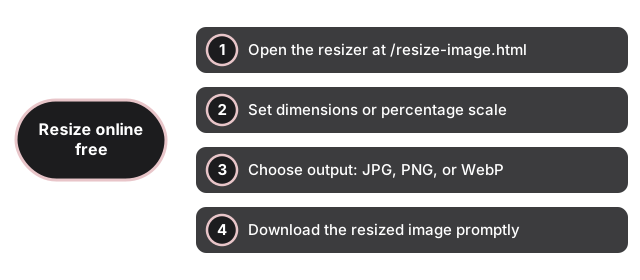
Open the image resizer, add your photo, and enter the new width and height in pixels or a scaling percentage. With aspect-ratio lock on, typing one dimension fills the other so the picture is not stretched. Pick JPG, PNG, or WebP for the output, then download the resized file the tool returns.
- Open the resizer. Go to https://freetoolonline.com/image-tools/resize-image.html and drop in a JPG, PNG, WebP, or JFIF file. The accepted upload types are .jpeg, .jpg, .png, .webp, and .jfif.
- Set the new size. Enter exact pixel dimensions (for example 1080 by 1080) or scale by a percentage such as 50% to halve both sides. Leave aspect-ratio lock on to keep proportions; the tool fills the matching dimension for you.
- Choose the output format. Save as JPG for photos, PNG for screenshots, diagrams, or transparency, or WebP for a lighter web file.
- Download. The image is uploaded over a secure connection, resized, and returned as a download link. The server clears the working copy automatically after a short time, so download promptly.
What size should I make the image?
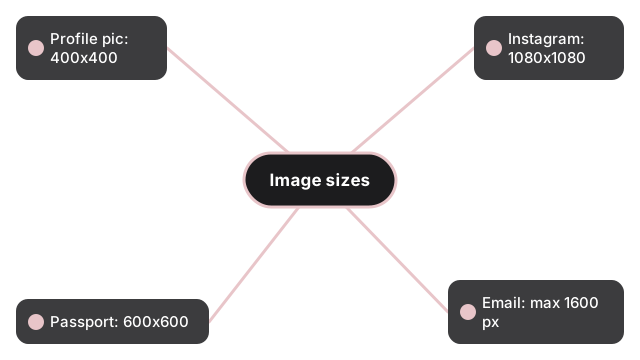
Match the target to where the image will appear. Square crops suit profile pictures and most feed posts; document and ID photos use fixed pixel sizes; email and chat attachments work best when the longest edge is a few thousand pixels or less. The table below lists common targets so you can type them straight into the resizer.
| Use case | Target dimensions (px) | Notes |
|---|---|---|
| Profile picture (square) | 400 x 400 | Crops to a circle on most platforms |
| Instagram square post | 1080 x 1080 | 1:1 aspect ratio |
| US passport photo | 600 x 600 | 2 x 2 inches at 300 DPI |
| Email-friendly photo | 1600 px on the longest edge | Keeps attachments small and sharp |
| Blog or article body image | 1200 px wide | Sharp on standard and high-density screens |
| Thumbnail | 150 x 150 to 320 x 180 | Square or 16:9 depending on the layout |
These are starting points, not rules. If a platform states an exact size, use it; otherwise the figures above keep the file useful without wasting pixels.
Does resizing reduce file size?
Usually yes - fewer pixels means less data, so a 4000 by 3000 photo cut to 1200 by 900 will weigh far less. But dimensions and file size are not the same thing. Resizing changes how many pixels the image has; file size also depends on the format and on compression. When you need a specific kilobyte target, dimensions alone may not get you there.
| Goal | Use this |
|---|---|
| Change how many pixels (width x height) | Resize image |
| Hit a target file size in KB without shrinking pixels | Compress image |
| Both: smaller dimensions and a smaller file | Resize first, then compress |
A practical order is to resize to the dimensions you need, then run the result through compress image if the file is still larger than the size limit.
Will resizing lower the image quality?
Downscaling to a smaller size keeps quality well because the resizer averages neighbouring pixels with bicubic interpolation, which preserves edges. Upscaling is different: making an image larger cannot add detail that was never captured, so pushing much beyond about 150% of the original size softens fine detail. For the sharpest result, start from the largest original you have and scale down.
Resize by exact pixels or by percentage?
Use exact pixels when a destination demands a fixed size, such as a 600 by 600 passport photo or a 1080 by 1080 post. Use a percentage when you only need the image roughly smaller or larger and want to keep the same shape, for example 50% to halve a screenshot. With aspect-ratio lock on, a 50% setting scales both width and height by half so proportions stay intact.
Which output format should I pick?
Pick the format by destination. JPG suits photographs and is widely supported; PNG keeps sharp edges and transparency, which helps with screenshots, logos, and diagrams; WebP produces a lighter file for modern web pages. The resizer can export to JPG, PNG, or WebP, so you can change both the size and the format in one pass.
Is it safe to resize images online?
The image is sent over a secure HTTPS connection, resized, and returned to you, and the server automatically deletes the working copy after a short time, so it is not kept around. No account or sign-up is needed. As always, only handle images you have the right to use, and download your result before the working copy is cleared.
Frequently asked questions
Is the image resizer really free?
Yes - no account, no sign-up, and no card required. Open https://freetoolonline.com/image-tools/resize-image.html, add an image, set the size, and download the result.
What happens to my image after I resize it?
The image is uploaded over a secure HTTPS connection, resized, and returned for download. The server automatically deletes the working copy after a short time, so download your result promptly.
What file types can I resize?
You can load JPG, JPEG, JFIF, PNG, and WebP images. The output can be saved as JPG, PNG, or WebP.
How do I keep the image from looking stretched?
Leave aspect-ratio lock on. When it is on, entering one dimension fills the other to match the original proportions, so circles stay round and faces are not squashed.
Can I make a small image bigger without losing quality?
Only up to a point. Upscaling cannot recreate detail that was never in the photo, so beyond roughly 150% the result softens. Start from the largest original you have for a sharper result.
What if I need a specific file size in KB?
Resizing changes pixel dimensions, which usually lowers the file size but does not target an exact KB number. To hit a size limit, resize first, then run the result through compress image.
Related guides
- compress image online to 50 KB - how to hit a specific file-size target when pixel dimensions alone do not get you there.
- when to compress vs convert an image - how to choose between reducing file size and changing format.