Private Text Summarizer - Step By Step
Working through Text Summarizer - Private, In Your Browser takes five moves: read what the page already shows, paste your text, pick a length, press Summarize, press Copy result. Loading a model is an optional sixth.
Step 1 - open the page
The box labelled "Your text" arrives pre-filled with a built-in sample paragraph, and the grey line under it reports that sample's word and character totals. The panel below already holds a result, labelled "Sample demo - Basic extractive summary (no AI model) - the highest-scoring sentences from the text".
Step 2 - read the engine line under the button
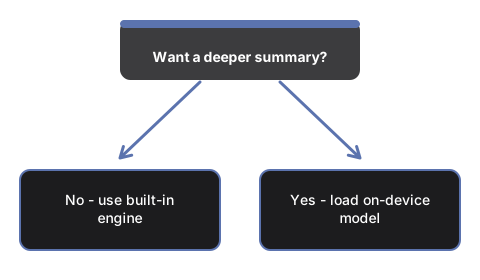
One status line names what will run. "Engine: built-in browser AI (no download)." means your browser has its own summarizer ready. "Engine: basic extractive summary (no AI model). Load a model below for better results." means no model is in play yet. Once one is loaded, the line names that model and ends "via WebLLM - runs on this device".
Step 3 - paste your own text
Select everything in "Your text" and paste over the sample. The counter under the box updates on every keystroke, and it is where the 8000-character limit becomes visible: past that number the on-device model path trims what it reads.
Step 4 - pick a summary length
The "Summary length" menu beside the button holds "Key bullet points", "Short paragraph" and "Detailed summary". On a model, the choice asks for three to six bullets, two to three sentences, or five to eight sentences. On the no-model pass it sets how many source sentences come back: two for the short paragraph, five for either of the others.
Step 5 - press Summarize
The label above the panel names what produced the text. Built-in browser AI shows "Working ..." for a moment, then the finished summary. A loaded model streams its answer in as it writes. With neither available you get the basic-extractive label and your own top-scoring sentences. An emptied box gives "No input" instead.
Step 6 - optional: load a model, then press Summarize again
In the "Optional: on-device AI model" panel, pick an entry in the "Model" menu - the default Llama 3.2 1B is under a gigabyte, the 3B about 2.2 GB, Phi 3.5 mini about 2.5 GB - and press "Load model". A progress bar tracks "Loading the model in your browser (one-time download, then cached) ..." and ends on "Model ready - processing happens on your device.". Without WebGPU a red note appears instead and "Load model" stays disabled. On a rerun past 8000 characters the result label ends "- input truncated to 8000 chars to fit the model context". "Clear cached models" empties the stored weights and reports "Cached model files cleared - the next load downloads again."
Step 7 - press Copy result
"Copy result" sits under the panel and puts the whole result on the clipboard; "Copied!" appears beside it for a second and then clears. That button is how the summary leaves the page, so copy it before you close the tab.
Why trust these tools
- Ten-plus years of web tooling. The freetoolonline editorial team has shipped browser-based utilities since 2015. The goal has never changed: get you to a working output fast, without an install.
- No install, no sign-up. Open a tool and get a working output in seconds - nothing to download and no account to create. Tools that need heavy processing run it on our service, so even a low-powered machine gets the job done.
- Analytics stops at the page view. We measure which pages get visited, not what you type or upload inside a tool. There is nothing to sign in to and no profile is attached to your input.
- Open-source core components. The processing engines underneath (libheif, libde265, pdf-lib, terser, clean-css, ffmpeg.wasm, and others) are public and audit-able. We link to each one in its tool page's footer.
- Free, with or without ads. All tools are fully functional without sign-up. The Disable Ads button in the header is always available if you need a distraction-free run.