
EXIF Orientation Tags - Why Photos Look Rotated After Upload
A photo can look upright in your gallery yet arrive sideways after upload or cropping - not because the pixels broke, but because the file's EXIF Orientation tag tells a viewer how to rotate it, and not every tool reads that tag. Check the tag with the EXIF viewer before assuming the image is broken.
Last reviewed: 2026-08-01
freetoolonline.com Editorial TeamWhat happened
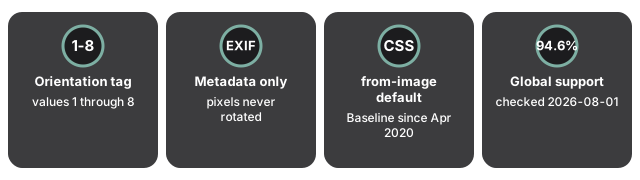
The EXIF (Exchangeable Image File Format) standard defines an Orientation tag with values 1 through 8, one for each 90-degree rotation and mirror-flip combination a camera sensor can record. The tag rides along as metadata next to the pixel data - the pixel data itself is never physically rotated. The Library of Congress's digital-format registry describes Exif as a metadata layer built on top of existing TIFF and JPEG encodings, carried specifically for camera settings rather than the image content.
Browsers took years to agree on reading that tag automatically. The CSS image-orientation property, whose from-image default tells a renderer to rotate the image per its EXIF tag, reached Baseline "Widely available" status in April 2020, per MDN. Checked against caniuse.com on 2026-08-01:
| Browser | image-orientation: from-image support |
|---|---|
| Firefox | Version 26 onward |
| Safari (macOS) | Version 13.1 onward |
| Safari (iOS) | Version 13.4 onward |
| Chrome | Version 81 onward |
| Edge | Version 81 onward |
| Opera | Version 68 onward |
| Samsung Internet | Version 13.0 onward |
Global support sits at 94.6 percent as of this check; Internet Explorer (all versions) and Opera Mini never added it.
Why it matters for everyday files
Why this matters for everyday files: browsers reading the tag automatically fixed the most common complaint - a photo dropped straight into a web page or a social feed now displays right-side up almost everywhere. What that fix does not guarantee: every tool a file passes through afterward. The orientation instruction is metadata sitting next to the pixels, not baked into them, and metadata is exactly the kind of detail that a resave, a crop, or a format conversion can silently drop. A photo that previews correctly in one app can still come out of another tool rotated 90 or 180 degrees, and the safest habit is to look at the actual tag value before assuming a rotated result means the file itself is damaged.
What to do with your files right now
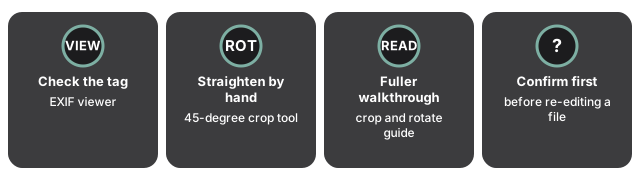
If a photo comes out sideways or upside down, these steps cover almost every case:
- Check the tag before you troubleshoot anything else. The EXIF viewer reads a photo's metadata in the browser, including the Orientation value, so you can confirm whether the problem is sitting in the metadata rather than the pixels.
- Straighten a sideways result by hand. The image cropper's rotate-left and rotate-right buttons turn a photo in 45-degree steps, and its free-angle handle fixes a tilted horizon, both without leaving the page or uploading the file.
- Read the fuller walkthrough for repeat cases. The crop and rotate guide covers straightening a batch of photos that all arrived with the same orientation problem.
Sources
- MDN - image-orientation CSS property (from-image default; Baseline widely available since April 2020)
- caniuse.com - CSS image-orientation browser support table (checked 2026-08-01)
- Library of Congress - Exif (Exchangeable Image File Format), Version 2.2 format description