How to compress a ZIP file to 2 MB
The ZIP compressor on this site builds the archive in your browser without uploading to a server. Getting the result under 2 MB depends on the inputs: text files, source code, and logs compress 60 to 80 percent under DEFLATE. JPG photos, MP4 clips, and PDFs barely shrink because those formats are already codec-compressed before the ZIP wrapper runs.
Last reviewed: 2026-05-21
| Property | Value |
|---|---|
| Where the ZIP is built | In your browser; no install, no account, no watermark |
| Typical 2 MB use case | Enterprise SMTP attachment cap, legacy webmail attachment cap, contact-form upload field |
| Realistic outcome for a text-heavy folder | 20 MB of logs / CSV often packs to ~3-5 MB; 5 MB of source-code or markdown often packs to ~700 KB - 1.5 MB |
| Realistic outcome for a photo-heavy folder | 20 MB of JPG photos packs to ~19.5-20.5 MB (no real shrink past the 2 MB cap) |
| Implementing tool | https://freetoolonline.com/zip-tools/zip-file.html |
Why 2 MB specifically?
The 2 MB number is the historical cap on a lot of corporate email systems: an Exchange mailbox policy that limits inbound attachments, a contact-form upload field configured for 2 MB, an SMTP relay that drops larger payloads as spam mitigation. It is also a common ceiling for legacy webmail (Yahoo Classic, older Hotmail) and for some helpdesk ticket platforms that accept attachments via email. The cap is independent of consumer Gmail's 25 MB rule; readers landing here usually know which system they are sending into.
Pick the inputs that can hit 2 MB on their own
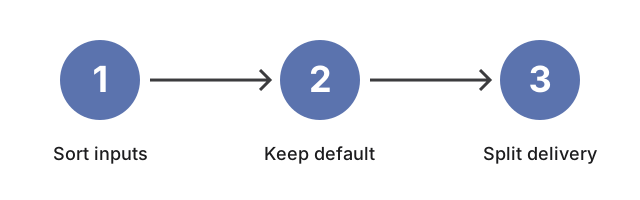
Getting a ZIP under 2 MB is an inputs question first, a settings question second. Text-heavy folders (logs, CSV, source code, configuration) often pack well below 2 MB; photo, video, and PDF folders typically do not, because each file's own codec already squeezed out the redundancy the ZIP wrapper would otherwise remove. The realistic path to a 2 MB archive is to shrink the inputs first, not to lean on the ZIP compression level. Plain-text inputs compress aggressively because they have long stretches of repeated tokens; 5 MB of access logs, CSV exports, configuration files, or source code often packs down past 1 MB inside a single .zip. JPG photos, MP4 videos, MP3 audio, and most PDFs come into the archive already compressed; the ZIP wrapper cannot reduce them further and will sometimes add a few percent of packaging overhead. If the inputs are media-heavy, the 2 MB target is usually unrealistic without re-encoding the media first - shrink the JPGs through https://freetoolonline.com/image-tools/compress-image.html or re-export the video at a lower bitrate before archiving.
What the compression level does and does not do
What the compression level does and does not do is spend CPU to find redundancy in text and uncompressed bitmaps toward a 2 MB zip - it will not re-encode JPG/MP4, so media-heavy folders often stay above 2 MB.
When the 2 MB target is unreachable, split the package
For an attachment limit of 2 MB, the workable answer is sometimes to split the delivery rather than fight the archive. ZIP the compressible inputs together (the text-like files, the source code, the configuration) and they often land under 2 MB on their own; send the media files in a separate channel (a file-sharing link, a cloud-storage URL, or a smaller follow-up archive) where the 2 MB cap does not apply. The two-package delivery is usually smaller and more reliable than a single ZIP that fails the size check.
What the numbers actually look like for common folder shapes
What the numbers actually look like for common folder shapes is this: a docs+code tree often lands well under a 2 MB zip target; a vacation photo dump rarely does unless you compress images first with Compress Image.
Related
For the broader "when does compressing a folder into a ZIP actually save space?" question, read the sibling guide https://freetoolonline.com/zip-tools/zip-file.html for the size-trade context. For a tighter target on icon or thumbnail-sized archives, see https://freetoolonline.com/guides/en/compress-zip-file-to-100kb.html. For the general "shrink this ZIP" walkthrough that does not pin a specific number, read https://freetoolonline.com/guides/en/how-to-reduce-zip-file-size-online.html. When the job is zipping a whole folder rather than hitting a size target, Folder to ZIP covers the archive-creation step first. When you are ready to build the archive, the in-browser creator at https://freetoolonline.com/zip-tools/zip-file.html is one click away.