Como grabar tu pantalla online - pantalla, camara o microfono

Un grabador de pantalla captura tu pantalla, camara o microfono directamente en el navegador. Elige una fuente, luego Iniciar, Pausar y Detener mientras un cronometro en vivo avanza. Activa el difuminado de rostro opcional, descarga el clip como WebM o conviertelo a MP4. Todo se queda en tu dispositivo, sin subir y sin cuenta.

Last reviewed: 2026-06-16

PropiedadValor
FormatoOnline, sin instalar, sin registro
CostoGratis
Herramienta de implementacionhttps://freetoolonline.com/device-test-tools/screen-recorder.html

Pasos

Pasos para grabar tu pantalla online: abre Screen Recorder, elige pantalla camara o microfono, inicia captura, luego descarga WebM o convierte a MP4 en tu dispositivo.

Compare cuatro pasos para grabar la pantalla online using the four points in this diagram.
Elige fuente, graba, detente, descarga el archivo.
  1. Elige una fuente: camara, camara y microfono, solo microfono o tu pantalla.
  2. Opcional: activa el difuminado de rostro y ajusta la intensidad antes de empezar, en un navegador compatible.
  3. Haz clic en Iniciar, luego Pausar o Reanudar segun lo necesites, y observa el cronometro en vivo en mm:ss.
  4. Haz clic en Detener; el clip aparece con controles de reproduccion y un enlace de Descarga.
  5. Opcional: convierte el clip a MP4 en el navegador y descargalo.

Fuentes de grabacion

Hay cuatro fuentes disponibles. La camara graba solo video; camara y microfono graban ambos; solo microfono captura audio; pantalla graba una ventana, pestana o la pantalla completa. La grabacion empieza solo despues de que haces clic en Iniciar y concedes el permiso del navegador. Si finalizas el uso compartido de pantalla desde la barra del navegador, la grabacion se detiene sola.

Difuminado de rostro opcional

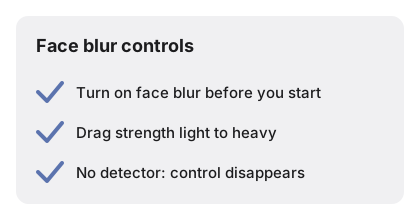
Compare cuatro opciones del desenfoque de cara opcional using the four points in this diagram.
El desenfoque facial es opcional - la grabacion queda local.

En un navegador con el detector de rostros disponible, el difuminado de rostro oculta los rostros detectados en tu dispositivo antes de que el grabador vea el fotograma. Ajusta la intensidad del difuminado de 1 a 10. Cuando el detector no existe, la grabacion continua sin difuminado y el control queda oculto. Los ajustes de abajo son los que usa la herramienta.

AjusteValor
Rango de intensidad del difuminado1 a 10 (predeterminado 5)
Codec de video MP4H.264, CRF 22
Audio MP4AAC, 128 kbps
Tamano del modulo MP4Unos 31 MB, cargado una vez

WebM y MP4

WebM y MP4 en Como grabar tu pantalla online el grabador de pantalla exporta WebM por defecto; pulsa Convert to MP4 para cargar un modulo H.264 unico de unos 31 MB.

Privacidad

Privacidad en Como grabar tu pantalla online significa que los clips se quedan en tu dispositivo - sin widget de subida, sin cuenta, nada guardado en un servidor.

← Volver a herramientas de prueba de dispositivo

Why trust these tools

  • Ten-plus years of web tooling. The freetoolonline editorial team has shipped browser-based utilities since 2015. The goal has never changed: get you to a working output fast, without an install.
  • No install, no sign-up. Open a tool and get a working output in seconds - nothing to download and no account to create. Tools that need heavy processing run it on our service, so even a low-powered machine gets the job done.
  • Analytics stops at the page view. We measure which pages get visited, not what you type or upload inside a tool. There is nothing to sign in to and no profile is attached to your input.
  • Open-source core components. The processing engines underneath (libheif, libde265, pdf-lib, terser, clean-css, ffmpeg.wasm, and others) are public and audit-able. We link to each one in its tool page's footer.
  • Free, with or without ads. All tools are fully functional without sign-up. The Disable Ads button in the header is always available if you need a distraction-free run.

Related tools:

  • Camera Test - Free camera test online: live preview, resolution readout, switch front and back camera, capture
  • Keyboard Test - Keyboard test online - press each key to highlight it, spot non-working keys, and verify Num Lock,
  • LCD Test - Test your LCD screen for dead pixels, stuck pixels, and backlight bleed.
  • Microphone Test - Free microphone test online: live spectrum meter, mic permission check, and optional speaker
  • Device Test Tools - Test camera, microphone, keyboard, and LCD online before meetings.
  • Screen Recorder - Record your screen, camera, or microphone in the browser, blur faces while recording, and download
  • GPU Test - WebGL Benchmark & Info - GPU Test - WebGL Benchmark & Info - See what your browser's graphics stack can do - WebGL 1 and 2
  • Speaker & Audio Channel Test - Test left and right speaker channels with a short in-browser tone.
  • Mouse Test (Buttons & Scroll) - Mouse Test (Buttons & Scroll) - Check left, middle, and right buttons, pointer coordinates, and
  • Gamepad / Controller Test - Gamepad / Controller Test - Check controller buttons and stick axes in the browser.
  • Touchscreen Test - Touchscreen Test - Check single and multi-touch contacts on a local pad in the browser.
  • Monitor Refresh Rate Test (Hz) - Monitor Refresh Rate Test (Hz) - Estimate your display refresh rate from requestAnimationFrame

Tags: #device-test

Related guides:

Related news: